

Guide
This guide walks through setting up Google Vertex AI language models for use with Onyx. For Google embedding models used in search, see Google Embeddings. The GKE deployment and IAM setup below also applies to embeddings; grant access to the API server and every worker that makes embedding requests.Google Vertex AI and Google AI Studio serve the same models. However,
Vertex AI has enterprise-grade features that may be useful for your organization.
Authentication Methods
Onyx supports two authentication methods for Google Vertex AI:- Service Account JSON — upload a downloaded service account key file. This works with Onyx deployed inside or outside Google Cloud and is the default flow covered in the guide below.
- Workload Identity (GKE) — authenticate using your GKE cluster’s ambient credentials, with no key file to generate or store. See Workload Identity (GKE) below.
Service Account JSON
1
Create a Service Account for Onyx
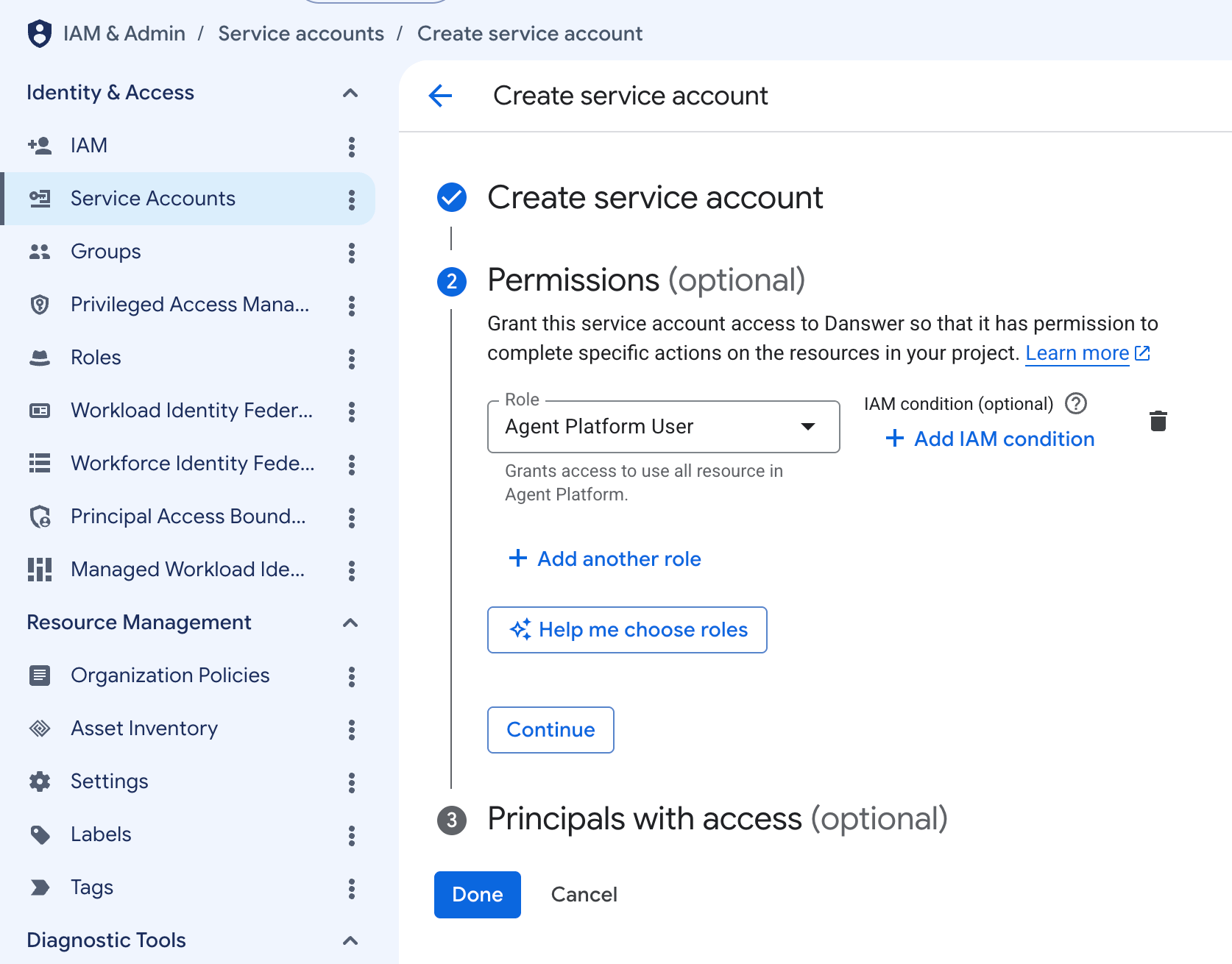
Go to the Google Cloud Console Service Accounts PageSelect your project and click Create Service Account.Give your Service Account a name and a description.On the Permissions tab, grant the service account the Agent Platform User role.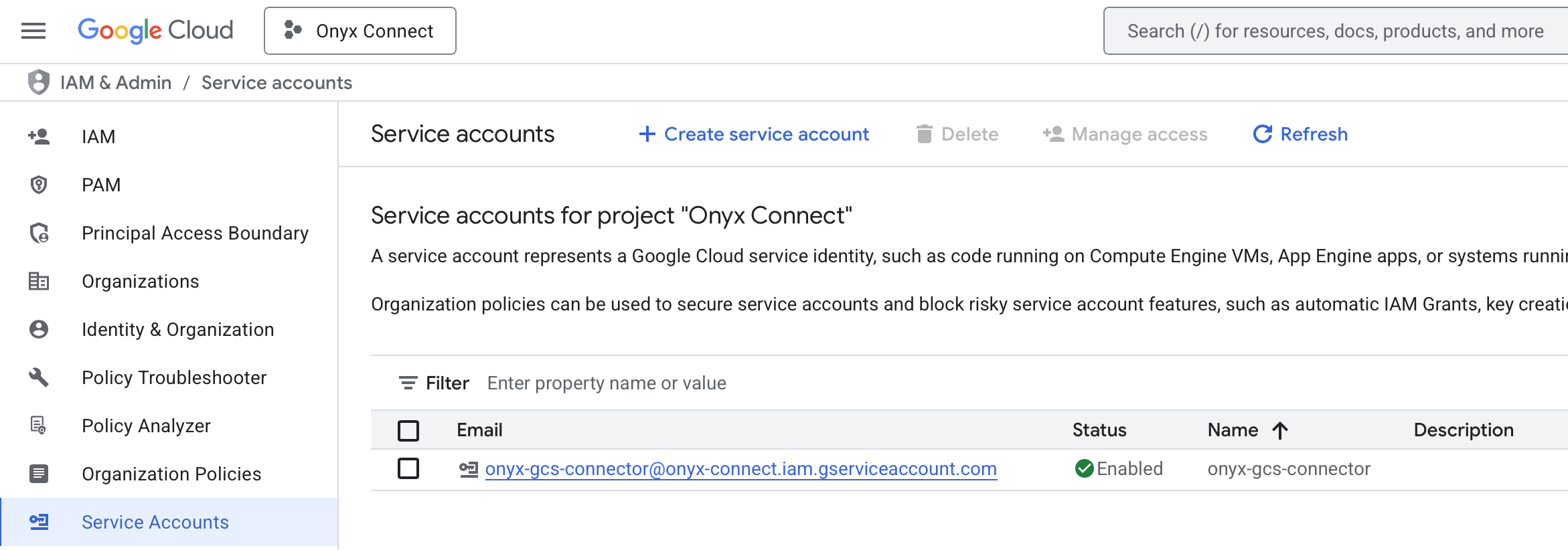
2
Create a New Key for the Service Account
Click your newly created Service Account → Keys → Add Key → Create new key.Select JSON as the key type and click Create. The key will be automatically downloaded to your computer.
3
Navigate to Language Models
Access the Admin Panel from your user profile icon, then navigate to Configuration → Language Models.
4
Configure Google Vertex AI
Select Google Cloud Vertex AI from the available providers.Give this configuration a Display Name.For the Authentication Method,
select Service Account JSON and upload your JSON key to the Credentials File field.If relevant, specify a Location.
5
Choose Visible Models
In the Advanced Options, you will see a list of all models available from this provider.
You may choose which models are visible to your users in Onyx.Setting visible models is useful when a provider publishes multiple models and versions of the same model.
6
Designate Provider Access
Lastly, decide whether the provider should be public to all users in Onyx.If set to private,
the provider’s models will be available to Admins and User Groups you explicitly assign the provider to.
Workload Identity (GKE)
For Onyx deployed on GKE, you can authenticate to Vertex AI using GKE Workload Identity Federation. With this method, Onyx picks up the pod’s ambient GCP credentials automatically (via Google’s Application Default Credentials) and no key file is ever created or stored.Prerequisites
- Onyx is already deployed on GKE.
- Billing is enabled in the project where you will use Vertex AI.
- For the CLI examples, authenticate the Google Cloud CLI
and configure
kubectlfor your Onyx cluster. The deployment administrator needs permission to enable APIs and grant IAM roles; cluster or Kubernetes service account permissions are only needed when changing those settings.
The first two steps are one-time deployment setup.
If your Onyx pods already use Workload Identity and have Vertex AI access,
continue to Navigate to Language Models.
The Service Account JSON method above does not require these Kubernetes changes.
1
Check Workload Identity is enabled
Autopilot: Workload Identity Federation for GKE is already enabled.Standard: Open the GKE clusters page, select your cluster,
and open Details → Security. Workload Identity must show Enabled,
with the namespace 
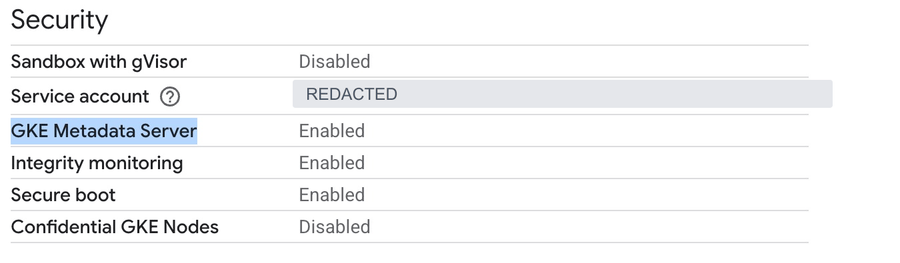
PROJECT_ID.svc.id.goog using your GKE project’s ID.If Workload Identity or the metadata server is disabled
If Workload Identity or the metadata server is disabled
In Details → Security, edit Workload Identity, select Enable Workload Identity, and save.
For each Onyx node pool, click Edit → Security, select Enable GKE Metadata Server, and save.
Enabling Workload Identity on the cluster does not enable it on existing node pools.The equivalent commands are:Use the cluster’s region for a regional cluster or its zone for a zonal cluster.
Replace
NODE_POOL_NAME and repeat for every node pool that runs Onyx.2
Give the Onyx pod identity Vertex AI access
Enable the Vertex AI API
in the project where you will use the models.Use the Kubernetes service account already assigned to the Onyx API server and any workers that call models.
To find it, replace Grant Agent Platform
User
(
onyx with your namespace:roles/aiplatform.user, formerly Vertex AI User)
in the Vertex AI project to that account’s Workload Identity
principal.
This grants access directly to the pod identity, without creating a Google Cloud service account or JSON key.If the Kubernetes account is already linked to a Google Cloud service account,
grant the role to that Google Cloud account instead and keep the existing link.
Repeat the grant for each distinct identity used by the API server and workers.Grant access directly with gcloud
Grant access directly with gcloud
Replace these example values.
GKE_PROJECT_ID identifies the cluster’s project;
VERTEX_PROJECT_ID identifies the project where Vertex AI is enabled. They can be the same.
The Helm chart uses the default Kubernetes service account when serviceAccount.create is false and
serviceAccount.name is empty; use the account shown on your running pods.Alternative: use a linked Google Cloud service account
Alternative: use a linked Google Cloud service account
Service account impersonation is another supported setup.
Use this if your deployment already uses a linked Google Cloud service account, or your organization requires one.
The binding and annotation below are required for impersonation; they are not needed for direct access.Check for an existing link:Replace Both the IAM binding and Kubernetes annotation are required for this method.
Repeat them for distinct Kubernetes accounts used by the API server and workers.
The Google Cloud account also needs permissions for other Google Cloud services those pods use,
such as Cloud Storage. The node pool’s service account is a separate node identity.If Helm creates the Kubernetes account, preserve the annotation in your Helm values:For this example, use
KSA_NAME and NAMESPACE. If an email is returned, reuse that account rather than replacing its link.
Otherwise, open the Service Accounts page
and create an account named onyx-vertex-ai, without creating a JSON key.Set the values below to your deployment. For an existing account,
set GSA_EMAIL to the returned email and GSA_PROJECT_ID to the project that owns that account.KSA_NAME="onyx" in the binding. If you change the account assigned to pods,
apply the Helm values and roll out the API server and workers.
Standard cluster pods must run on node pools with the GKE Metadata Server enabled.
See Google’s service account linking
guide.3
Navigate to Language Models
Access the Admin Panel from your user profile icon, then navigate to Configuration → Language Models.
4
Configure Google Vertex AI
Select Google Cloud Vertex AI from the available providers.Give this configuration a Display Name.For the Authentication Method, select Workload Identity (GKE).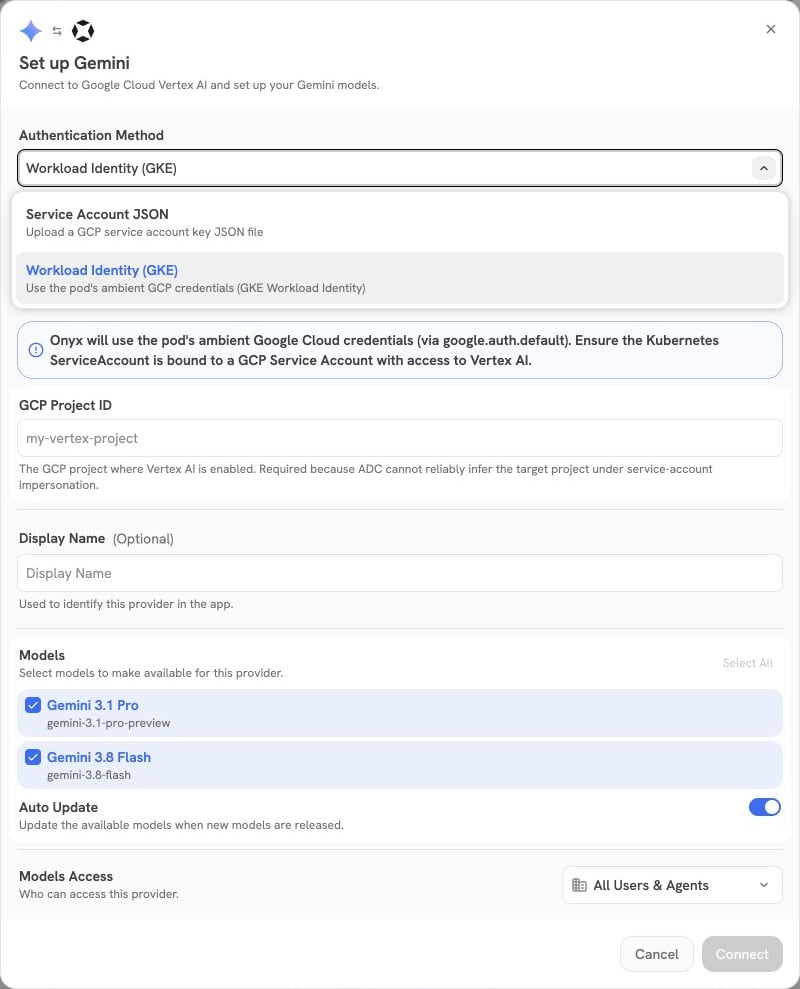
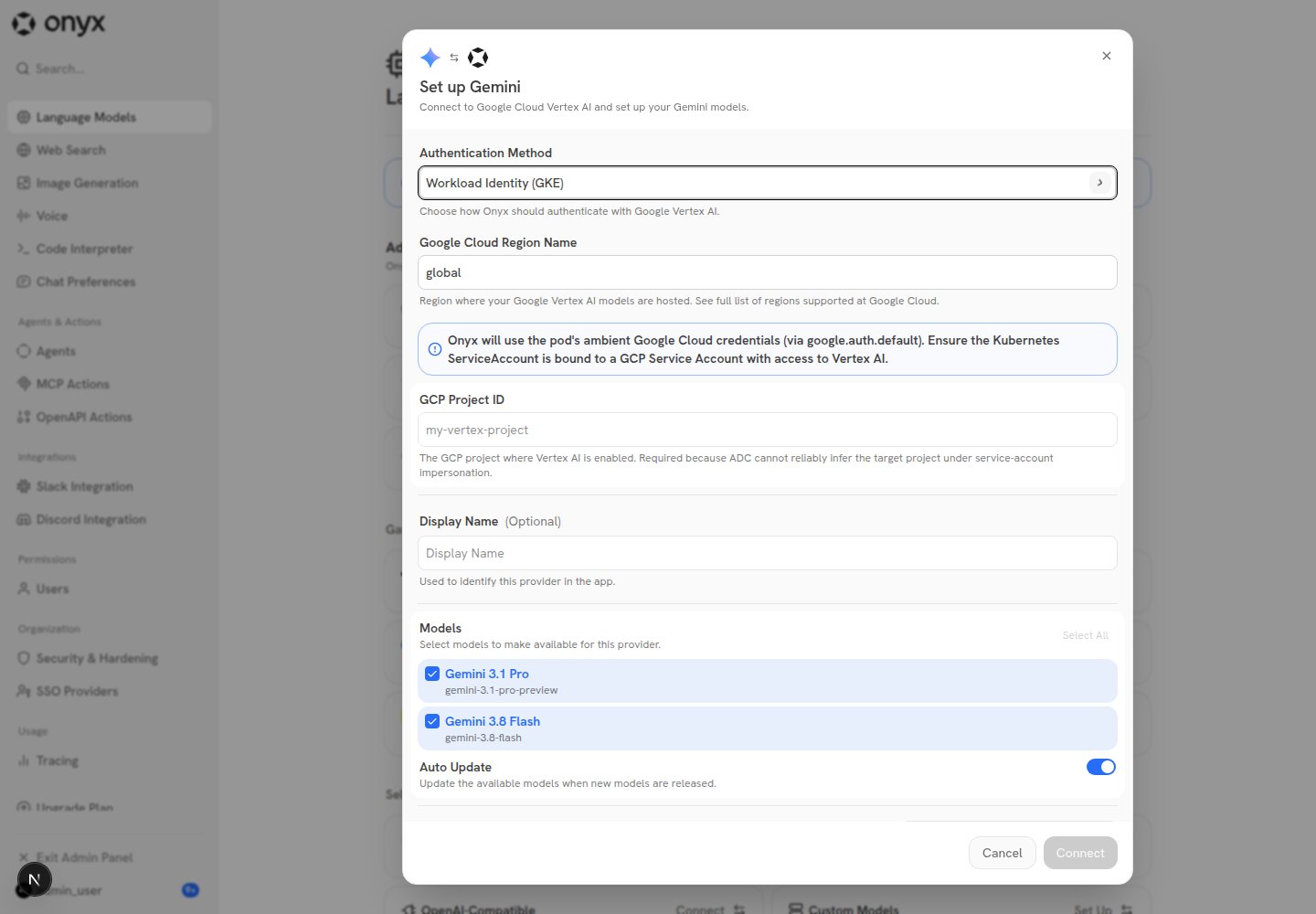
global;
this is independent of your GKE cluster’s location.5
Choose Visible Models
In the Advanced Options, you will see a list of all models available from this provider.
You may choose which models are visible to your users in Onyx.Setting visible models is useful when a provider publishes multiple models and versions of the same model.
6
Designate Provider Access
Lastly, decide whether the provider should be public to all users in Onyx.If set to private,
the provider’s models will be available to Admins and User Groups you explicitly assign the provider to.
7
Verify the connection
Start a chat using one of this provider’s models and send a message.
A successful response confirms that Onyx can obtain credentials and call Vertex AI.
If the connection fails
If the connection fails
If authentication fails, check the identity on the running API server pod and its node pool’s metadata server.
For direct access, check the IAM grant to the Kubernetes principal. For service account impersonation,
check the
iam.gke.io/gcp-service-account annotation and the roles/iam.workloadIdentityUser binding.
A permissions error can also mean that roles/aiplatform.user was granted in a different project from the GCP
Project ID in Onyx, or that the Vertex AI API is disabled there.
Allow a few minutes for new IAM grants to propagate before retrying.FAQ
Does Onyx need to run on Google Cloud or GKE to use Vertex AI?
No. Vertex AI is accessed through Google Cloud APIs, and Onyx can call those APIs from another cloud or an on-premises deployment using Service Account JSON, with the required permissions and network access. The GKE steps above apply to credentials supplied automatically to Onyx pods by the GKE metadata server. Remotely accessing a GKE cluster withkubectl does not give an external Onyx deployment those pod credentials.
Onyx’s Workload Identity (GKE) option uses Application Default Credentials under the hood.
Google also supports Workload Identity Federation for workloads outside Google
Cloud.
That requires a separate setup that makes credentials available to the Onyx API server and workers;
it is outside the scope of this GKE walkthrough.
Can I use a Vertex AI API key instead of a service account?
No. Today, Onyx’s Vertex AI provider supports only Service Account JSON or Workload Identity (GKE) as authentication methods — a standalone Vertex AI API key (Vertex Express Mode) is not accepted. If you just want to authenticate with a plain API key, you can instead add a Custom LLM provider using thegemini provider name,
which routes through the Google AI Studio Gemini Developer API using an API key.
See the Custom Inference Provider guide.
Google AI Studio is a separate product from Vertex AI, with different billing and data-handling terms.
AI Studio API keys are not interchangeable with Vertex AI credentials.