

Authentication Methods
Onyx supports three authentication methods for Amazon Bedrock. You select one in the Authentication Method field when you connect the provider.Environment IAM Role (recommended for AWS environments)
Environment IAM Role (recommended for AWS environments)
- Onyx uses the IAM role attached to the environment it runs in
- Use this when Onyx runs on AWS infrastructure (EC2, EKS)
AmazonBedrockLimitedAccess policy. Optionally,
attach the AmazonBedrockFullAccess and AmazonBedrockMarketplaceAccess policies.Attach the role to the environment that Onyx runs in. For example,
attach it to your Onyx EC2 instance or EKS service account.Access Key (for non-AWS environments)
Access Key (for non-AWS environments)
- You enter an Access Key ID and Secret Access Key in Onyx
- Use this when Onyx runs outside AWS
AmazonBedrockLimitedAccess policy. Optionally,
attach the AmazonBedrockFullAccess and AmazonBedrockMarketplaceAccess policies.Open the IAM user’s Security Credentials tab.
Create a new Access Key and copy the Access Key ID and Secret Access Key.Long-term API Key (for non-AWS environments)
Long-term API Key (for non-AWS environments)
- A Bedrock API key created in the Amazon Bedrock console
- Use this when Onyx runs outside AWS and you do not want to manage IAM access keys
AmazonBedrockLimitedAccess policy for you.Copy the key. You paste it into Onyx.Cross-Account Access
With the Environment IAM Role or Access Key method, Onyx can call Bedrock in a different AWS account. Enter the Role ARN to assume and, if the role’s trust policy requires one, the External ID. Onyx assumes the role with the credentials above before each call.A Long-term API Key is bound to one account and cannot assume a role.
Cross-account access is not available on Onyx Cloud.
Guide
1
Enable the Models You Want
In the Bedrock console, open the Model catalog and decide which models you want to use with Onyx.If you do not have access to a model yet, request access in the Bedrock console.
Onyx can only list models that are enabled in your account and region.
2
Navigate to Language Models
Open the Admin Panel from your user profile icon, then open Language Models.
3
Connect Amazon Bedrock
Under Add Provider, click Connect on the Amazon Bedrock card.Select your Authentication Method.Select the AWS Region where your Bedrock models are hosted.Depending on the method, enter the AWS Access Key ID and AWS Secret Access Key,
or the Long-term API Key. Optionally, enter a Role ARN to assume and External ID.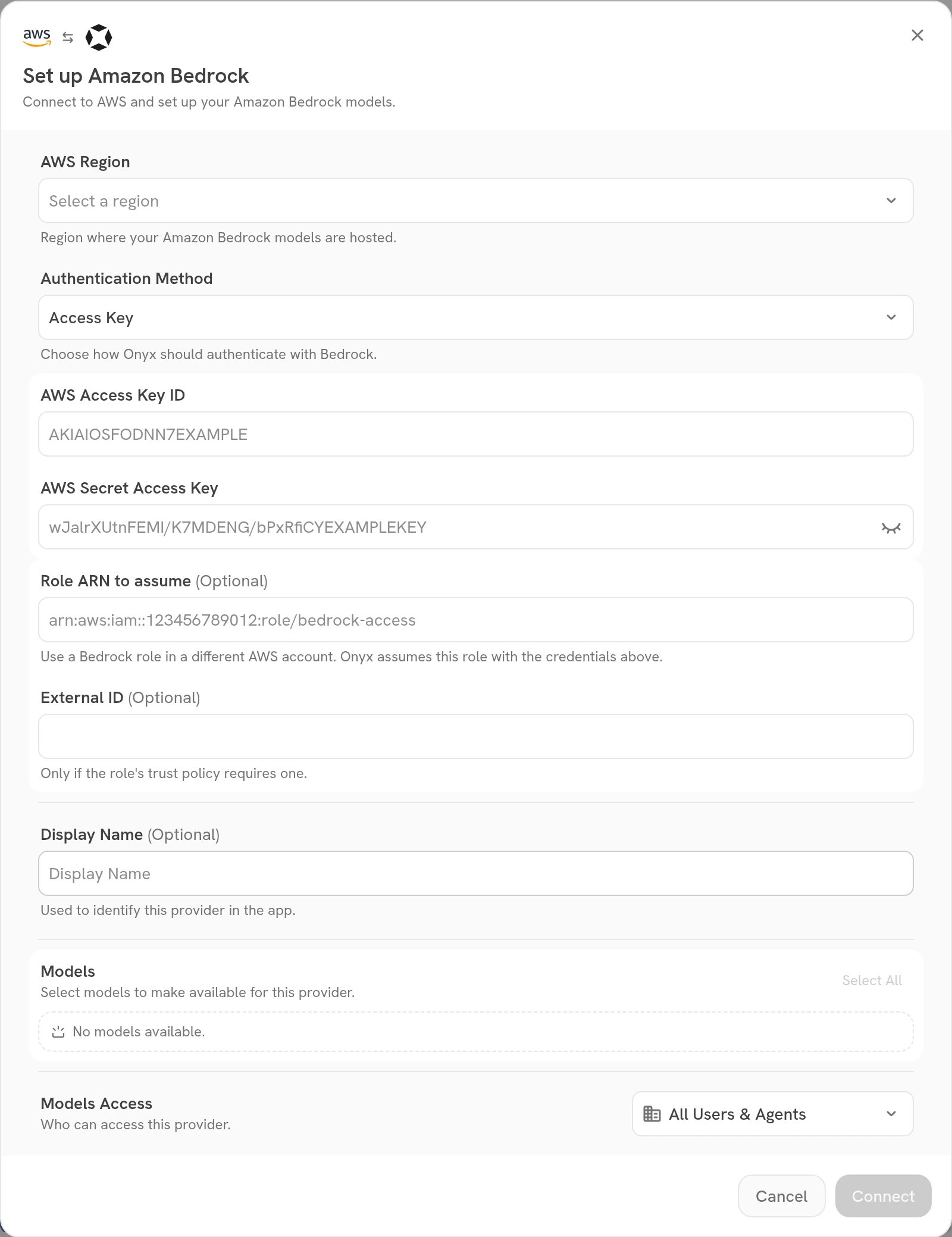
4
Load Your Models
After you set the region and credentials, click Refresh models in the Models section.
Onyx lists the models and inference profiles available to your account in that region.
5
Choose Visible Models
In the Models section, select the models that users can pick in chat. If a model is missing,
open More Models or type its name and click Add Model.Limiting visible models helps when a provider publishes many models and versions of the same model.
6
Set Models Access
Under Models Access, choose All Users & Agents or Named Groups & Agents.With Named Groups & Agents, only Admins and the User Groups and Agents you name can use the models.
Named groups need a Business plan or higher.
7
Connect
Click Connect. Onyx tests the credentials with one of the selected models before it saves the provider.