

How it works
The Slack Federated connector does not index Slack messages. Onyx searches Slack live at query time with the Slack Search API and merges the results with results from indexed sources.- Each user authorizes their own Slack account. Onyx searches as that user, so results respect the user’s Slack access.
- Onyx does not store Slack messages in its document index.
- Results are limited to the time window and message count that you set on the connector.
The Slack Indexed connector
finds relevant results much better than the Slack Search API.
Use it when your Slack plan and admin policy allow indexing. Use the federated connector when they do not.
Setting up
Authorization
1
Create new app
You must be an admin of the Slack workspace to set up the connector.
Sign in to https://api.slack.com/apps.
Click Create New App and select From an app manifest. Select the relevant workspace and click Next.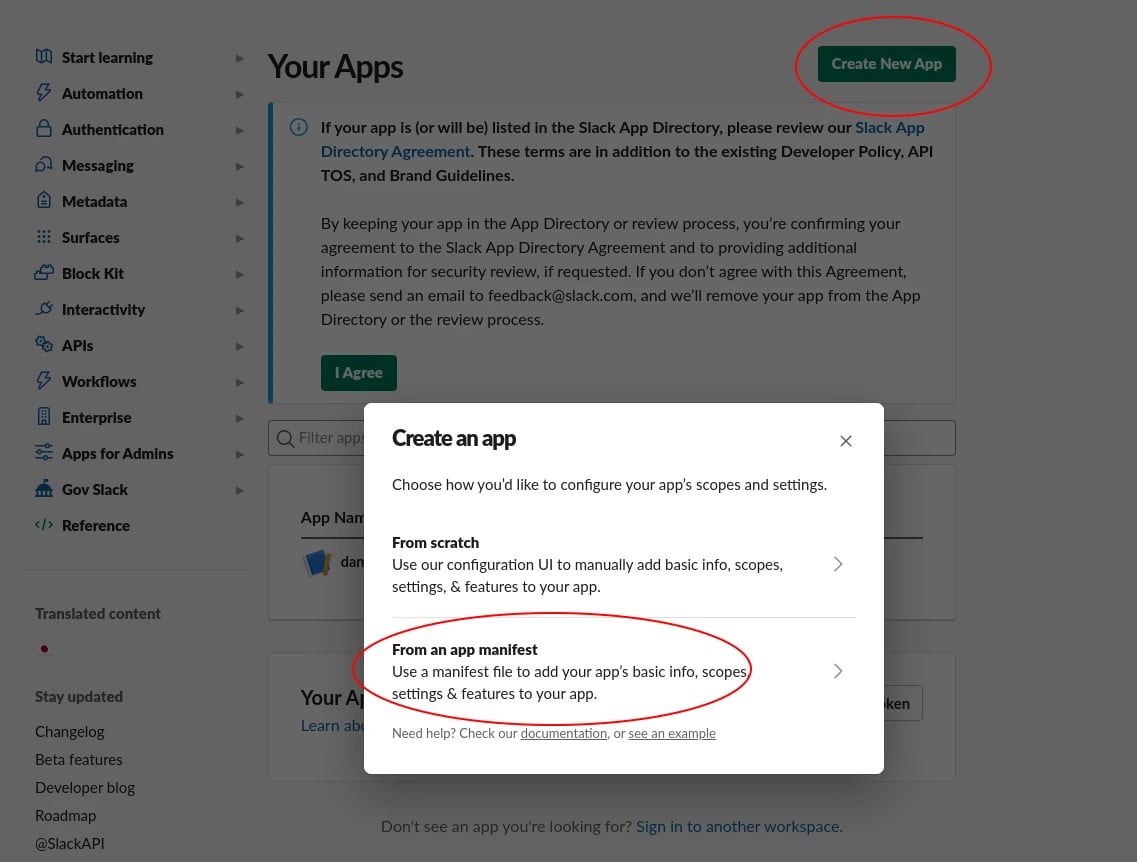
2
Paste manifest
Select the “YAML” tab, paste the following manifest into the text box, and click Next:
For Onyx Cloud, the
redirect_urls value should be https://cloud.onyx.app/federated/oauth/callback.1
Copy client credentials
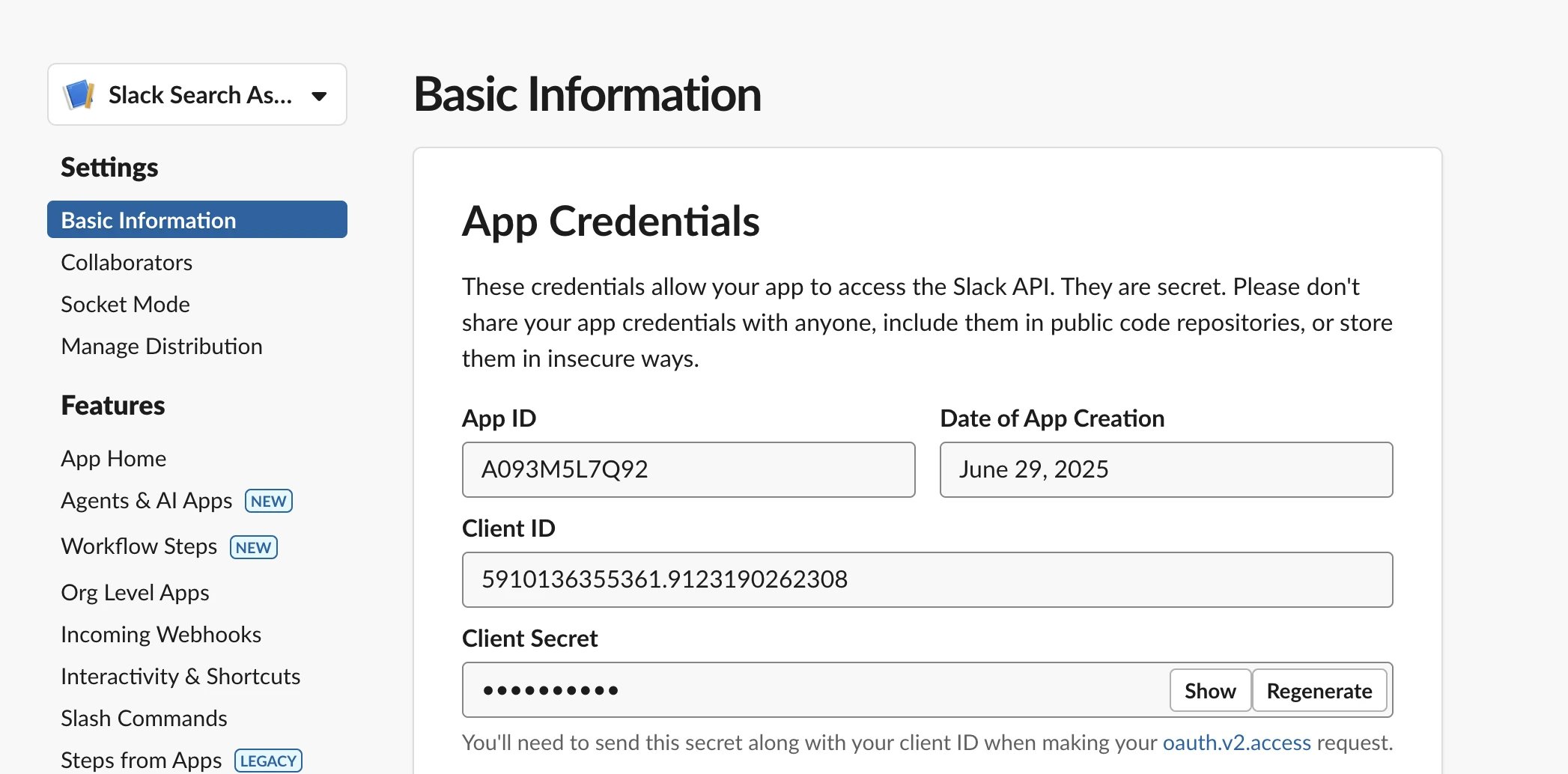
Click Create. In the app page, open the Basic Information tab under the Settings header.
Copy the Client ID and Client Secret. Store them somewhere safe for the next step.
Configuring the connector
1
Open the Slack connector
In the Admin Panel, go to Connectors and select Slack. On the Slack setup page,
click Use federated version instead. If a Slack Federated connector already exists,
the Slack card opens it directly.
2
Enter client credentials
Enter the Client ID and Client Secret from the previous step.
3
Configure search scope
Channel Selection: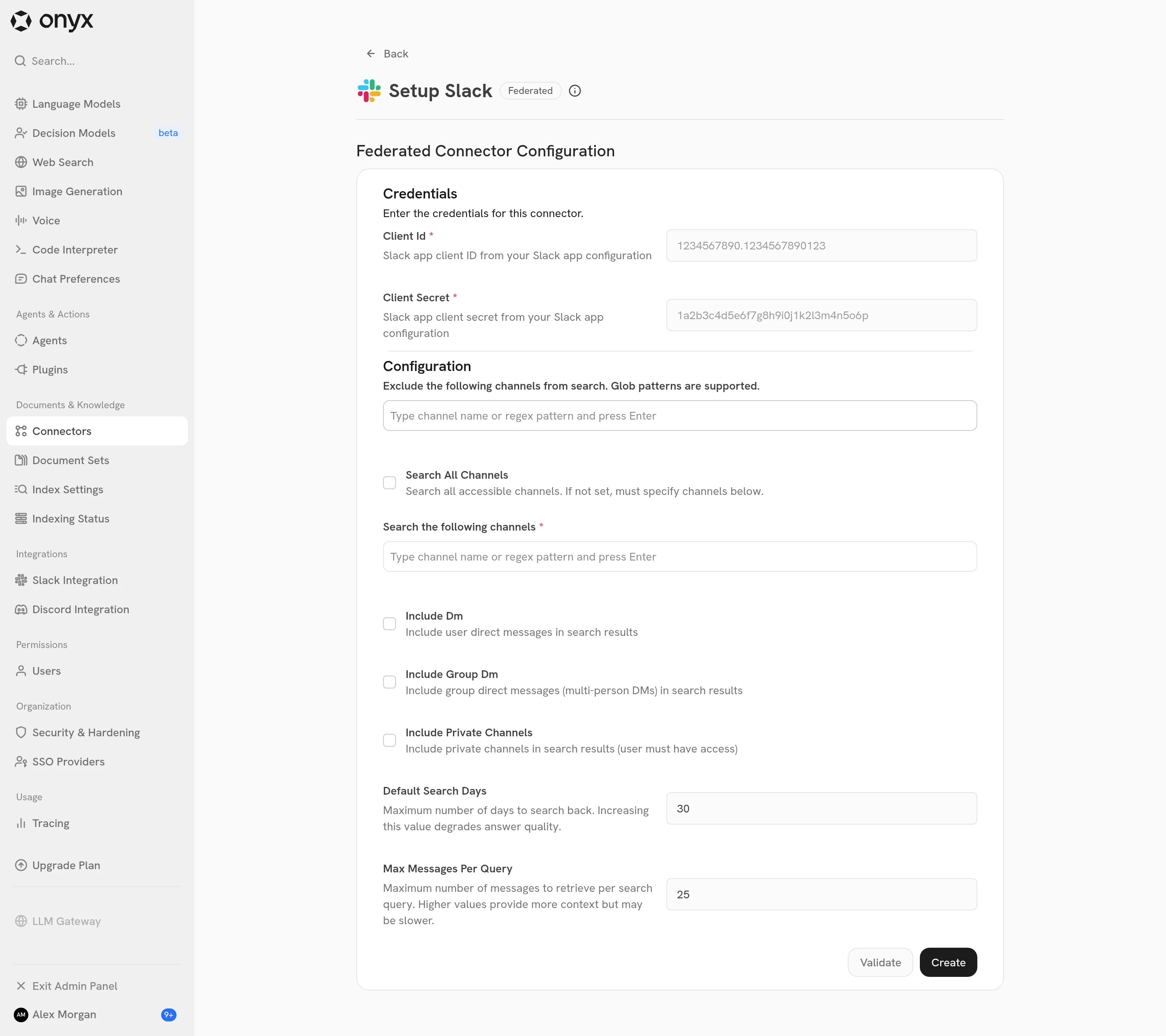
- Search All Channels: Search all channels the user can access. When enabled, the Channels field is ignored.
- Channels: The channels to search when Search All Channels is disabled. At least one channel is required.
- Exclude Channels: Channels to leave out of search. Supports glob patterns (for example
secure-channel,private-*,customer*).
- Include Direct Messages: Include the user’s 1:1 direct messages in search results.
- Include Group Direct Messages: Include multi-person direct messages in search results.
- Include Private Channels: Include private channels the user belongs to.
- Default Search Days: Maximum number of days to search back (default 30, range 1 to 365). A larger value can reduce answer quality.
- Max Messages Per Query: Maximum number of messages to retrieve per search (default 25, range 1 to 100). Higher values make more Slack API calls and can hit rate limits.
4
Connect your Slack account
Each user connects their own Slack account. Open the account menu in the bottom left of Onyx,
find Slack under Connect Your Apps, and click Connect. Approve the Slack OAuth request.
If a user has not connected Slack, Onyx skips Slack for that user’s searches and returns results from other sources.
The searchable content depends on:
- The connector configuration (channels, DMs, private channels)
- The OAuth scopes granted during setup
- The user’s own access in Slack
mpim:read or im:history),
the connector continues to search the other channel types.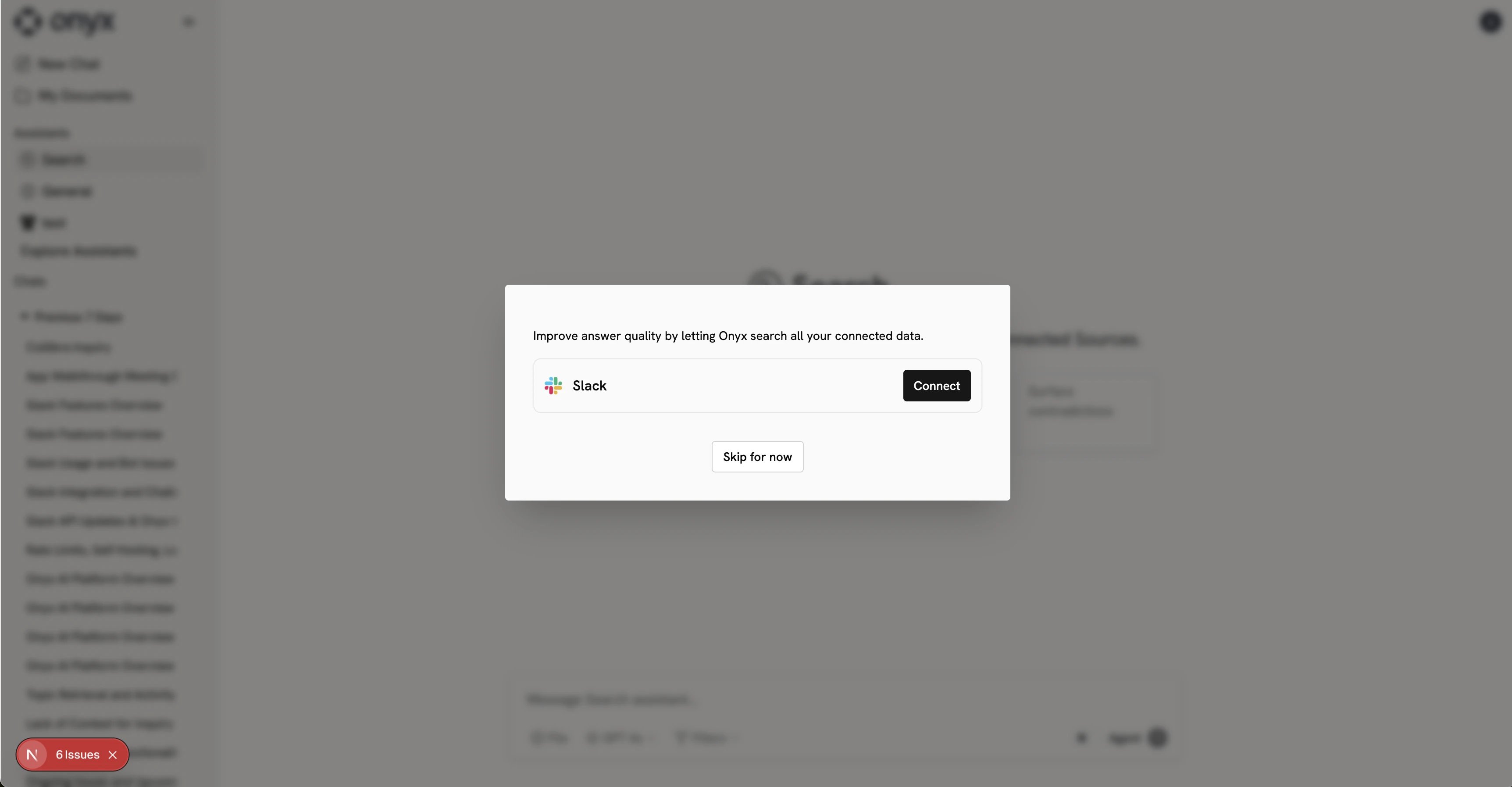
Managing the connector
- Edit or delete the connector from Connectors → Slack, or from the Federated entry on the Indexing Status page.
- Add the connector to a Document Set under Federated Connectors so Agents that use the set also search Slack.
- Federated connectors do not have index attempts, pruning, or permission sync. Access is enforced by Slack at query time.