How it works
The Document360 connector indexes the articles of one Document360 workspace. You can limit it to specific categories. Document360 saves articles in HTML, Markdown, or block format. The connector indexes HTML articles only. Onyx checks Document360 for new and changed articles every 30 minutes by default. You can change Refresh Every on the connector. Permission sync is not available for Document360. Everyone who can see the connector’s documents in Onyx can see every indexed article.Setting up
Authorization
1
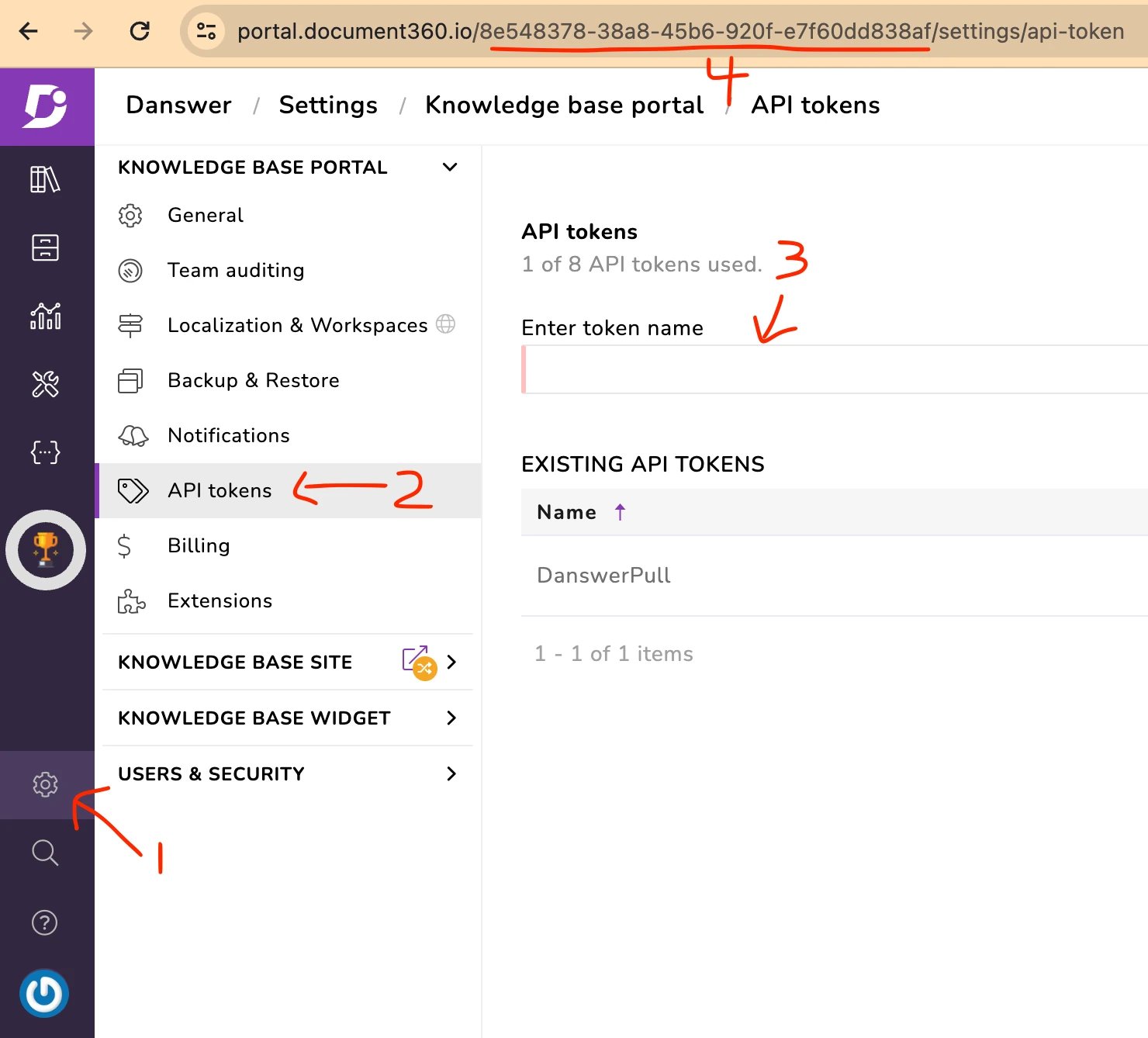
Open API tokens
In Document360, go to Settings > Knowledge base portal > API tokens.
2
Generate a token
Click Generate. Enter a token name and select the allowed request methods. Click Generate again.
Document360 shows your portal ID and API token. Copy both.
Indexing
1
Create the account
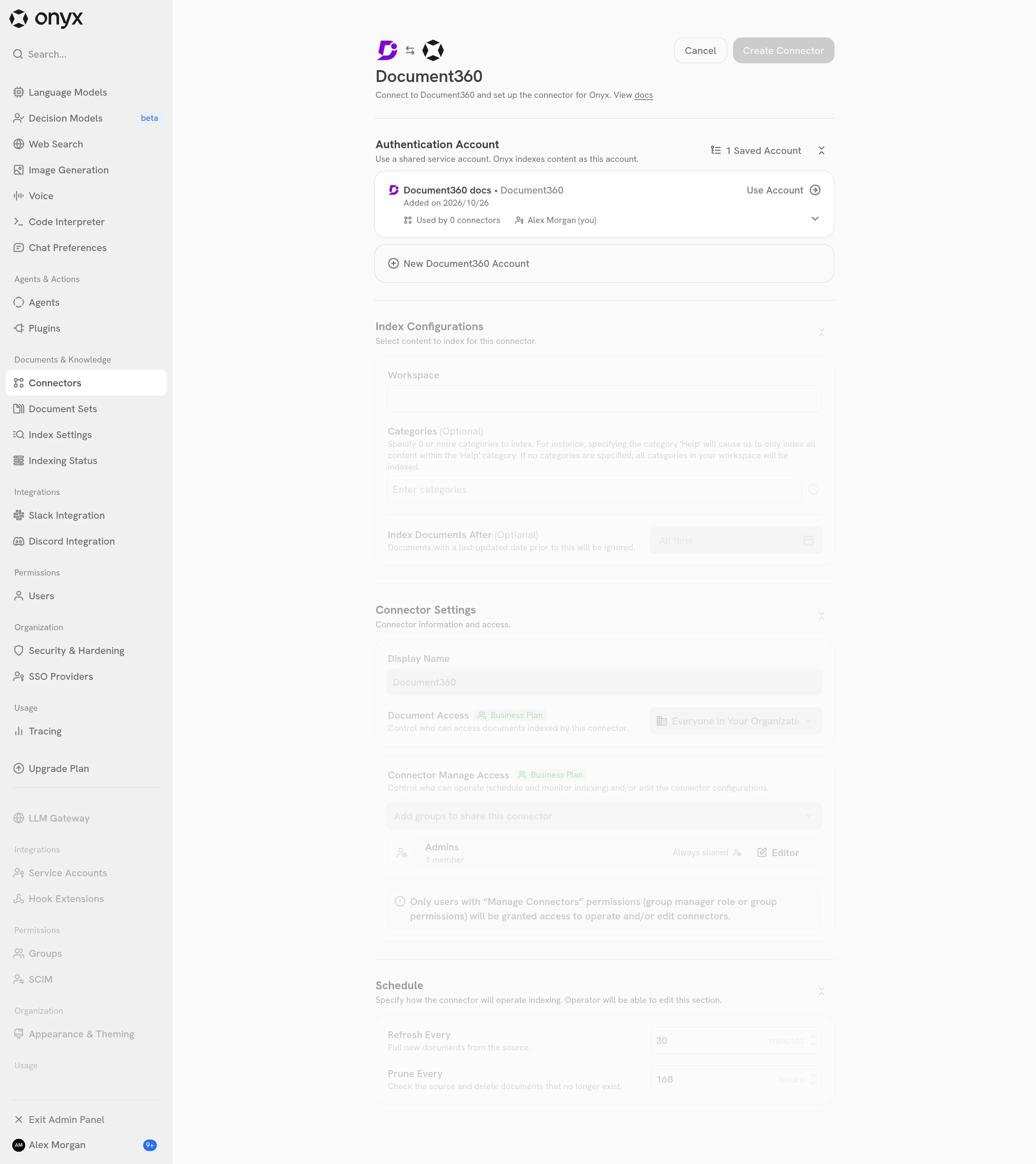
In the Onyx admin panel, go to Connectors and select Document360. Under Authentication Account,
click Create New. Enter the Document360 Portal ID and the API Token from above.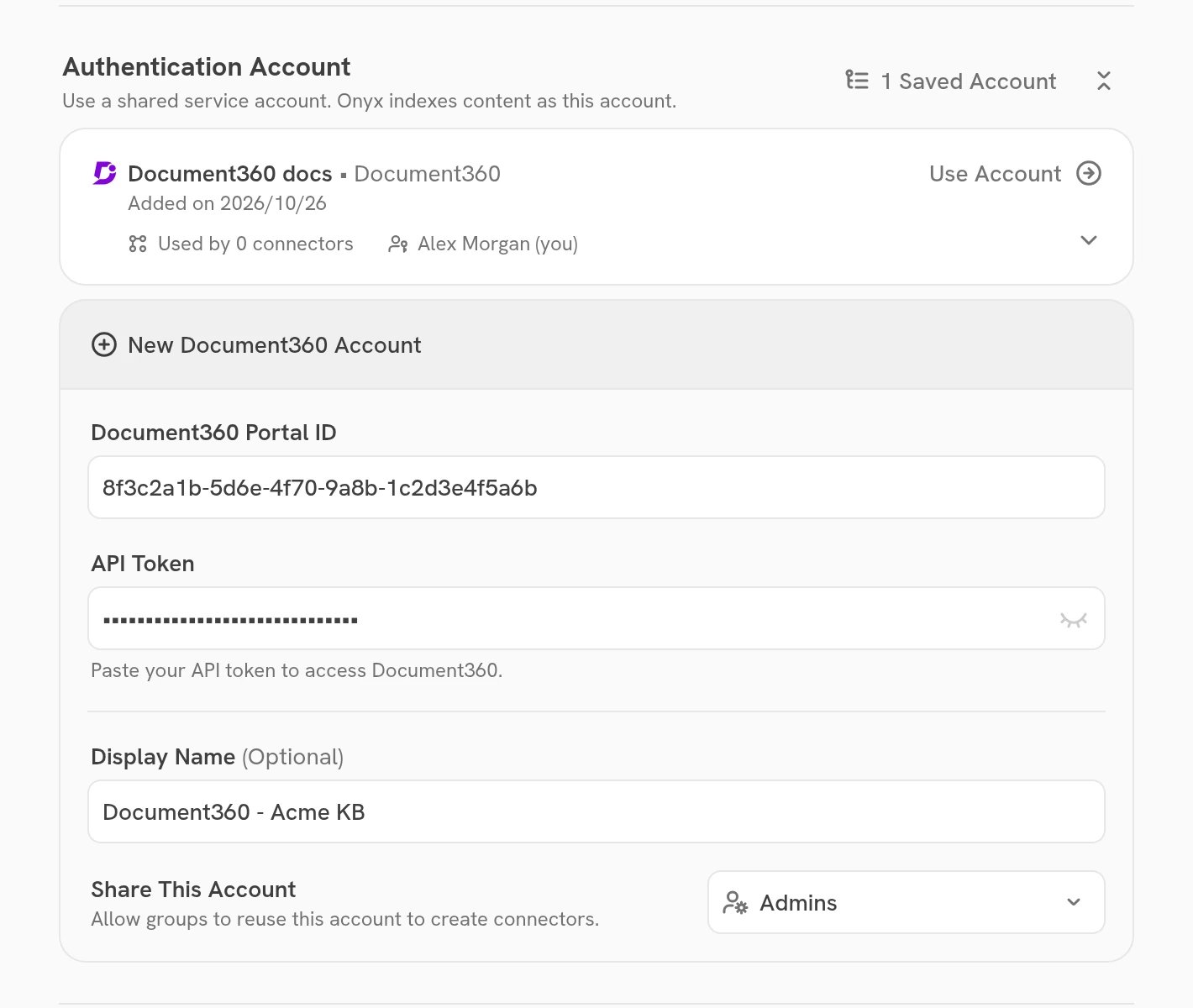
2
Set the workspace and categories
Enter the Workspace name. Add one or more Categories to index only those categories.
Leave Categories empty to index the whole workspace.
3
Choose document access
Under Document Access, select who can see the indexed articles.
Specific Groups is available on the Business and Enterprise plans and on Onyx Cloud.
Then click Create Connector.