

How it works
The Highspot connector indexes the content items in your Highspot instance. It indexes either the Spots you name or every Spot the API user can view and download from. Each content item becomes one document. Onyx checks Highspot for new and changed items on the connector’s refresh schedule. The default is every 30 minutes. The Highspot connector does not support Sync with Highspot (permission sync).Setting up
Authorization
IMPORTANT: Highspot Platform Plus is an add-on feature that provides access to the API. Without Platform Plus, users cannot access the API features required for this connector.
Enabling Developer Options
1
Open company settings
Log into your Highspot account as an administrator.
Open “Settings” and select “your company” under company settings.
2
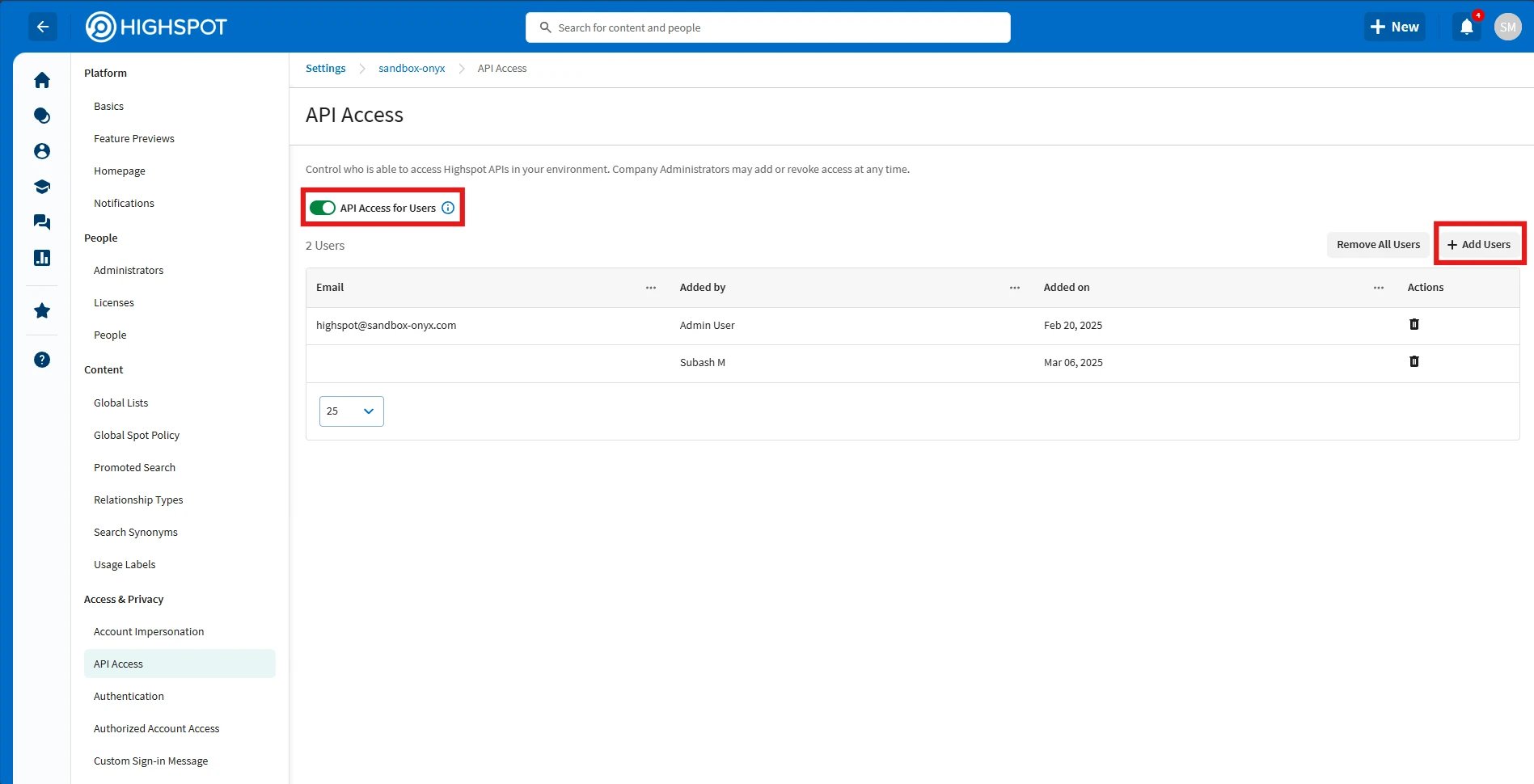
Enable API access
Navigate to “Access and Privacy” and click on “API Access”. Add the user(s)
who will need to generate API keys and secrets. Confirm “API Access for Users” is enabled.
Generating API Credentials
1
Generate API key
Log in as the user who has been granted API access. Open “Settings”,
select the “Developer” tab and generate a new API key. You’ll receive a key and secret.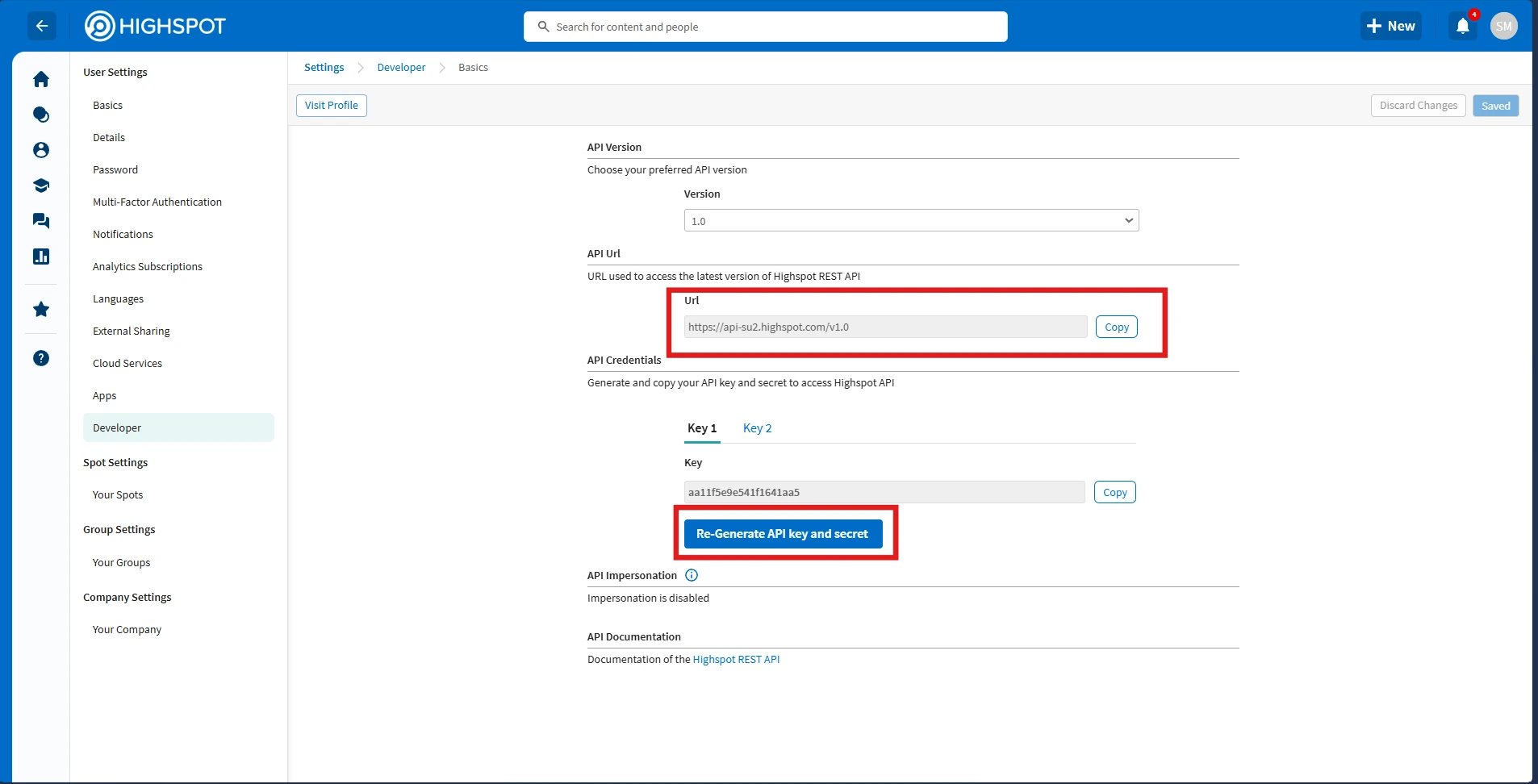
2
Record credentials
Note the API key, the secret and the API base URL of your Highspot region,
for example
https://api-su2.highspot.com/v1.0/.Indexing
1
Create a credential
Go to Admin Panel → Connectors and select Highspot. Select New Highspot Account.
Enter the API base URL in Highspot URL, the API key in Highspot Key and the secret in Highspot Secret,
then select Create.
2
Choose what to index
Under Highspot Content to Index, select one option:
- Specific Spots: enter the names of the Spots to index in Spot Name(s). Names are not case-sensitive.
- Everything: index every Spot the API user can view and download from.
3
Choose document access
Under Document Access, select Everyone in Your Organization or Specific Groups.
Specific Groups needs the Business or Enterprise tier on Onyx Cloud, or the Enterprise Edition when self-hosted.
4
Start indexing
Select Create Connector to start indexing.