

How it works
The File connector indexes files that an admin uploads to Onyx. It supports these file types:- Text:
.txt,.md,.mdx,.conf,.log,.json,.csv,.tsv,.xml,.yml,.yaml,.sql - Documents:
.pdf,.docx,.pptx,.xlsx,.xlsm,.eml,.epub,.html - Images:
.png,.jpg,.jpeg,.webp
.zip that contains these files. Onyx skips files of other types inside the zip.
You can add metadata to a file, such as a link, the document owners, and the update time.
Onyx uses this metadata in search and in answers.
Permission sync does not apply to uploaded files.
Everyone who can see the connector’s documents in Onyx can see every file.
Adding metadata
Put one metadata line at the top of a text file. Use one of these formats:#ONYX_METADATA={"link": "<LINK>"}<!-- ONYX_METADATA={"link": "<LINK>"} -->
ONYX_METADATA= is followed by a JSON object. Onyx reads these keys:
linktitlefile_display_nameprimary_ownerssecondary_ownersdoc_updated_at
Metadata for a zip file
To set metadata for the files in a.zip, add a .onyx_metadata.json file to the root of the zip.
The file holds one entry per file, matched by filename:
status in this example is a tag. Add any key and value you want as a tag.
Setting up
Authorization
The File connector needs no external account. Any admin who can manage connectors can upload files.Indexing
1
Upload files
In the Onyx admin panel, go to Connectors and select File. Under Files,
drag in or select one or more files or a 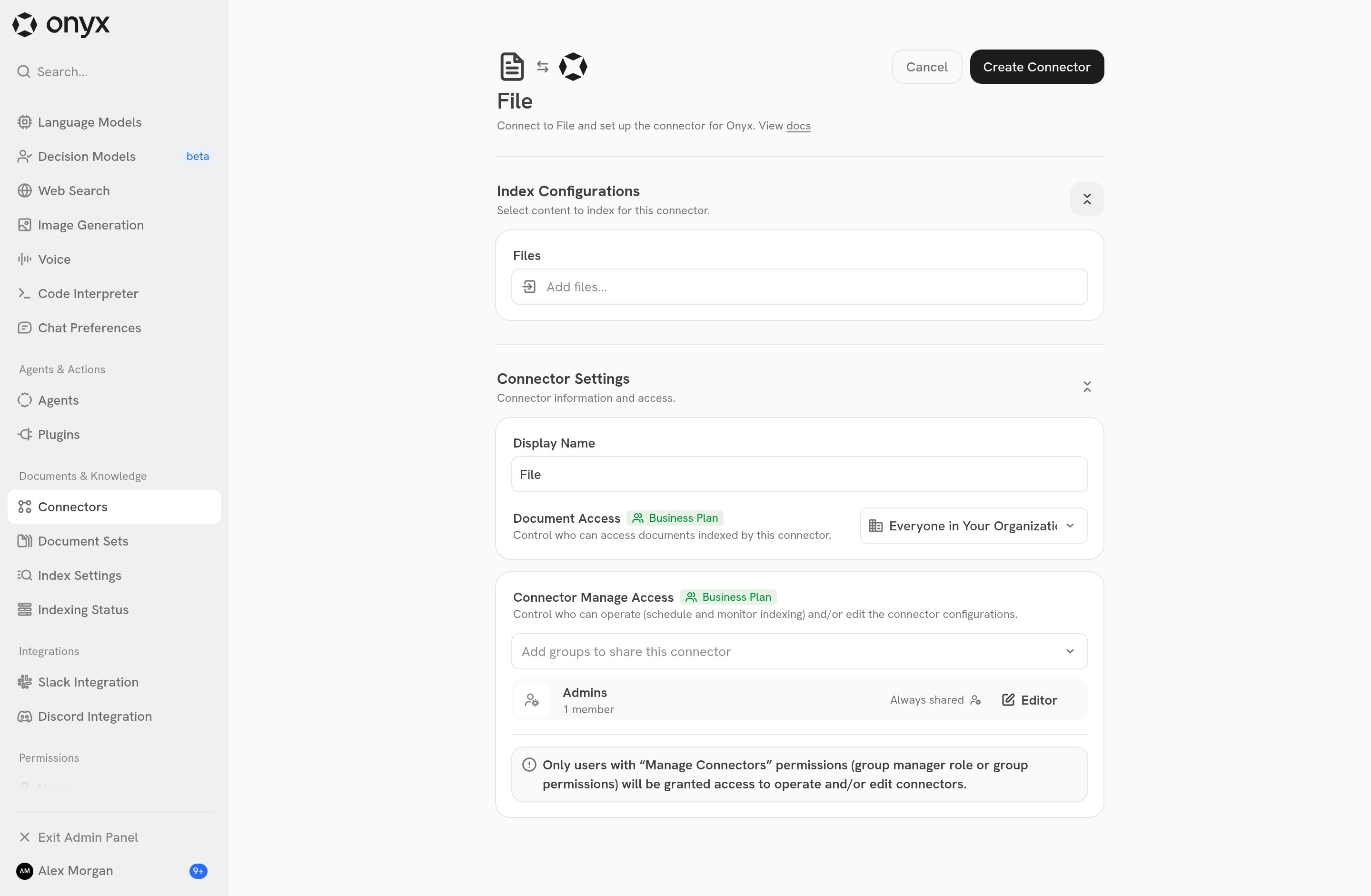
.zip.2
Choose document access
Under Document Access, select who can see the files.
Specific Groups is available on the Business and Enterprise plans and on Onyx Cloud.
Then click Create Connector.