

How it works
The ClickUp connector indexes tasks from a ClickUp workspace. You can index the whole workspace, or only the spaces, folders, or lists you choose. Each task becomes one document. It holds the task name, description, status, assignees, custom fields, and, if you enable it, the task’s comments. Onyx pulls new and changed tasks every 30 minutes by default. You can change this under Schedule. Sync with ClickUp is not offered. The access type can only be Everyone in Your Organization or Specific Groups.Understanding the ClickUp hierarchy
In ClickUp, tasks live inside containers:- The entire Workspace
- Spaces
- Folders
- Lists
Setting up
Authorization
1
Generate an API token
In ClickUp, click your avatar, select Settings → Apps, and under API Token click Generate.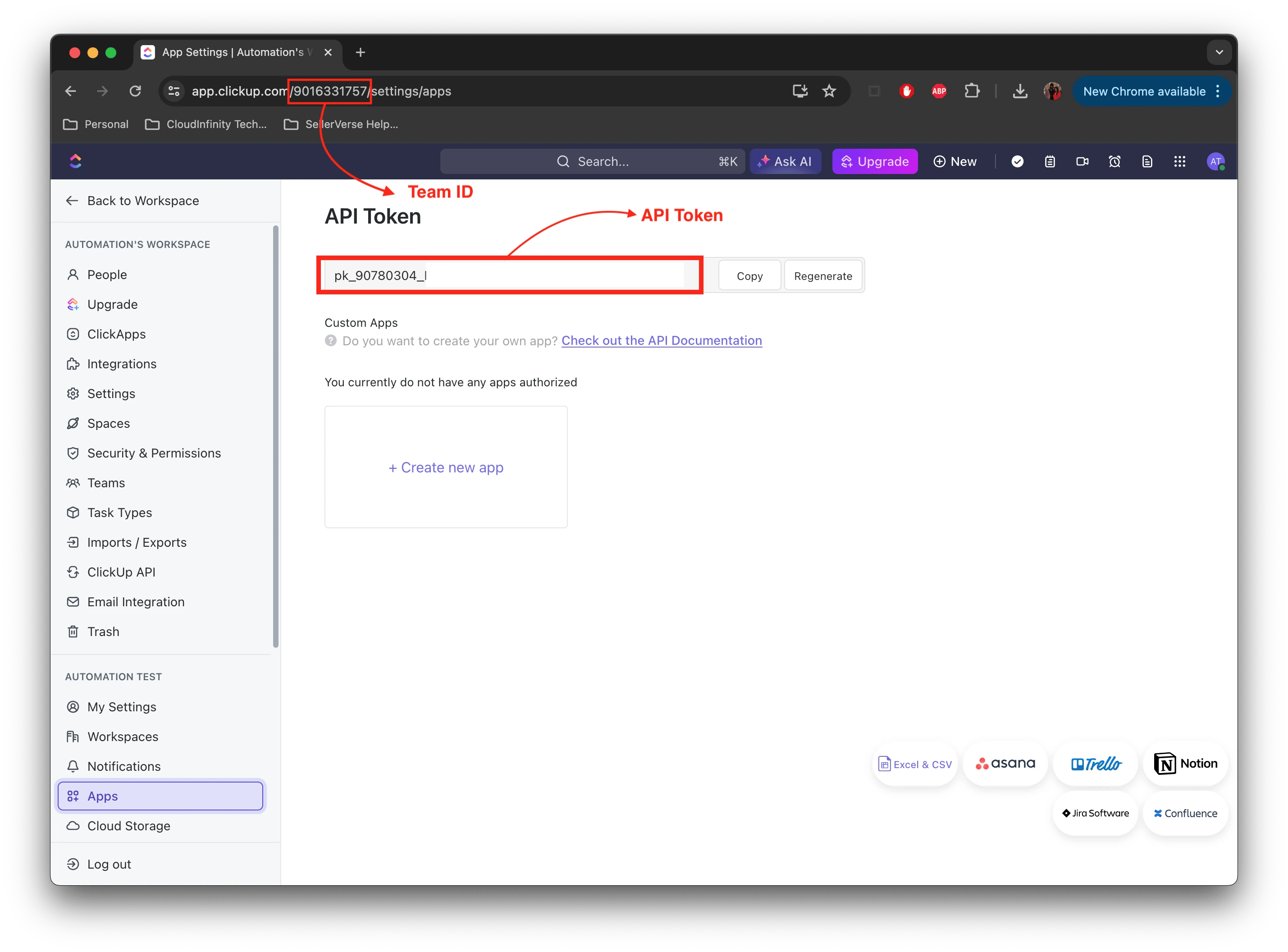
2
Find your Team ID
Open your workspace in the browser. The number after
https://app.clickup.com/ is the Team ID,
for example 9012345678 in https://app.clickup.com/9012345678/home.Indexing
1
Connect a ClickUp account
In Onyx, go to Admin Panel → Connectors and select ClickUp. Under Authentication Account,
select New ClickUp Account. Paste the token into API Token and enter the ClickUp Team ID.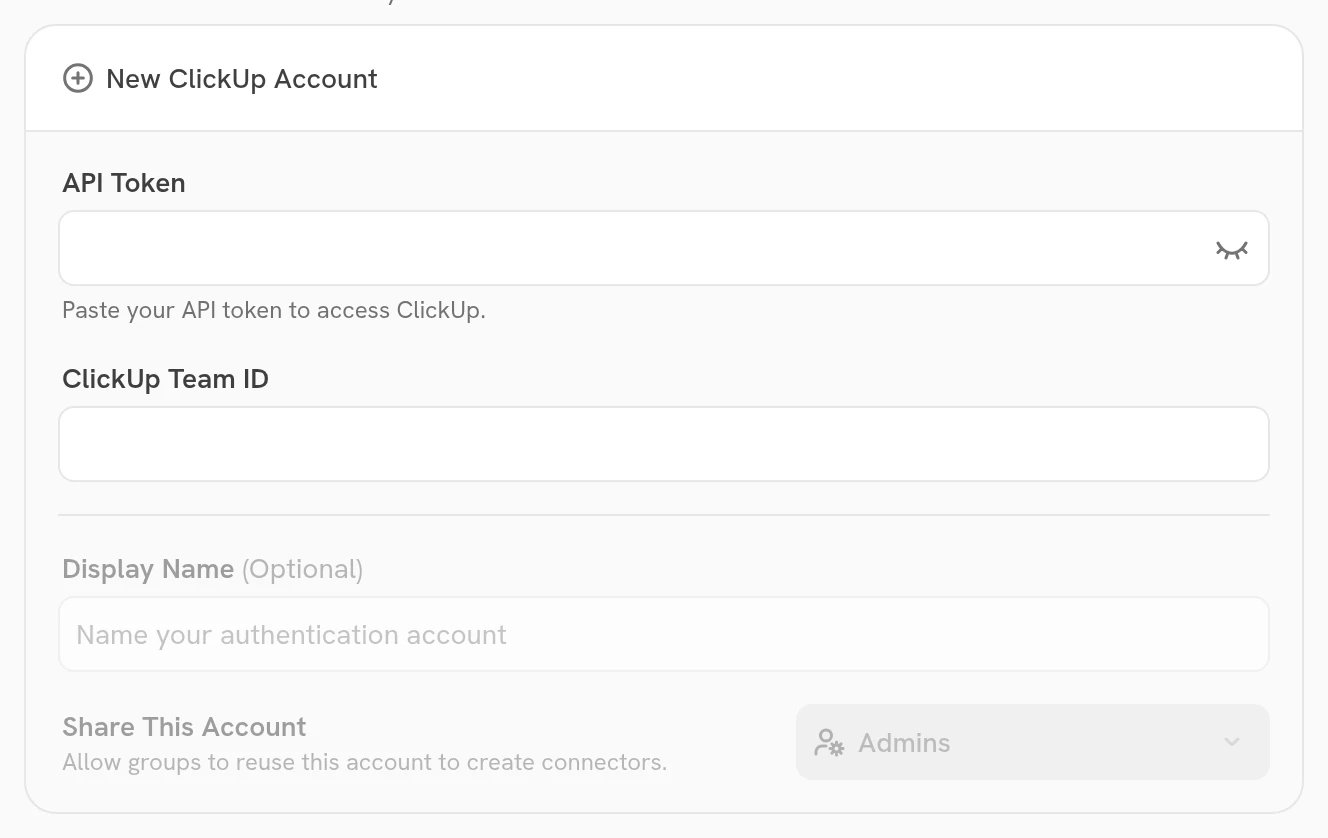
2
Choose the connector type
In Connector Type, select 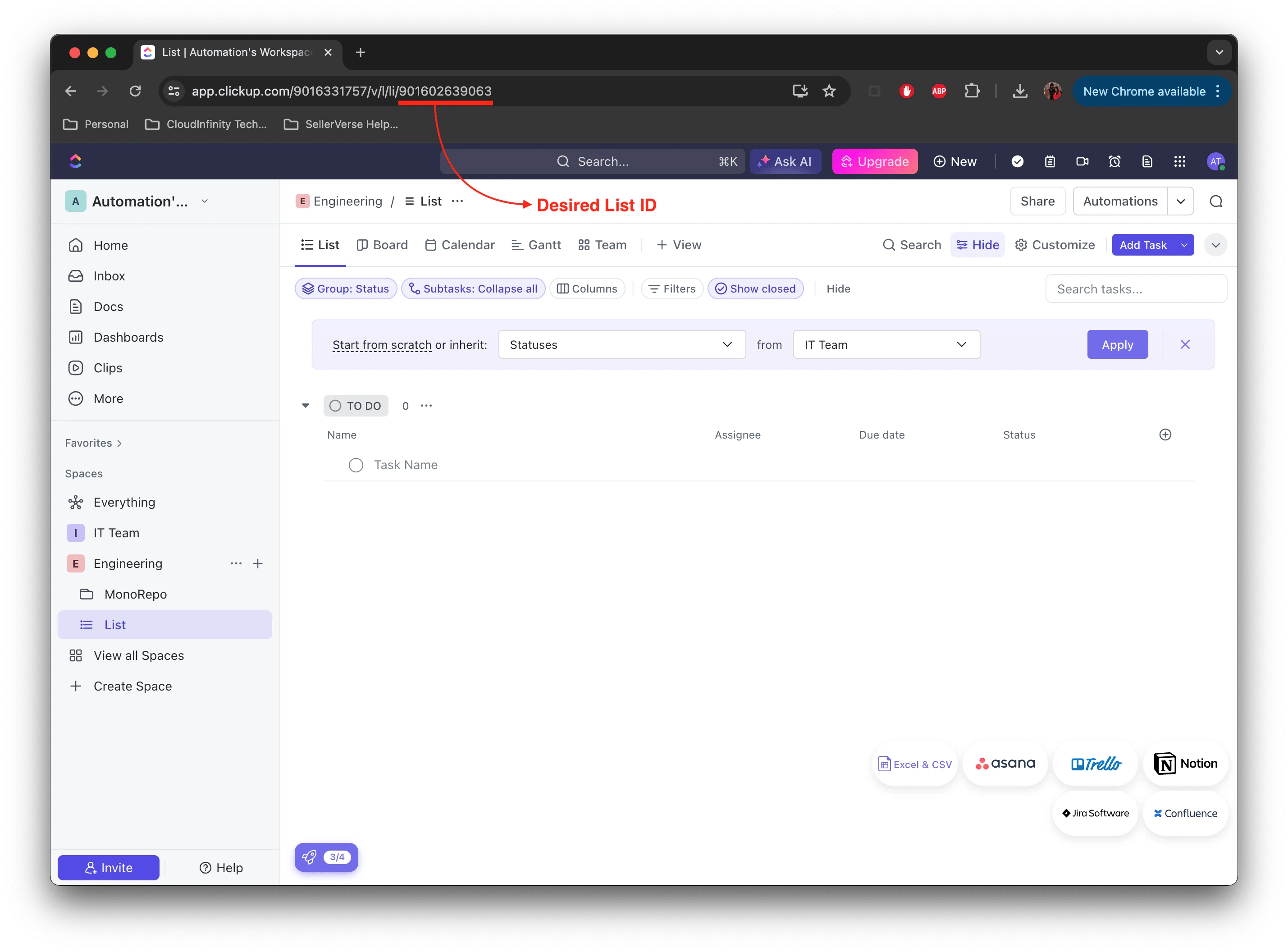
workspace, space, folder, or list.- To index the whole workspace, select
workspaceand leave Connector IDs empty. - To index specific spaces, folders, or lists, select the matching type and add at least one ID under Connector IDs.
3
Choose comment indexing
Select Retrieve Task Comments to also index every comment on each task.
4
Choose who can see the tasks
Under Document Access, select Everyone in Your Organization or Specific Groups.
Specific Groups is available on Onyx Cloud and Enterprise Edition.
5
Create the connector
Select Create Connector. Open Admin Panel → Indexing Status, select the connector,
and confirm its first indexing attempt completes.