

How it works
The Dropbox connector indexes the files in the Dropbox account of the access token. It walks every folder from the root. You cannot limit the connector to specific folders. Onyx indexes the supported document types and skips files larger than 20 MB. For each file, Onyx creates or reuses a Dropbox shared link and uses it as the document link. After the first run, Onyx checks Dropbox for new and changed files every 30 minutes by default. You can change Refresh Every on the connector. Permission sync is not available for Dropbox. Everyone who can see the connector’s documents in Onyx can see every indexed file.Setting up
Authorization
1
Create a Dropbox app
Go to https://www.dropbox.com/developers/apps and click Create app.
Select Scoped access and Full Dropbox as the type of access.
Give your app a name like 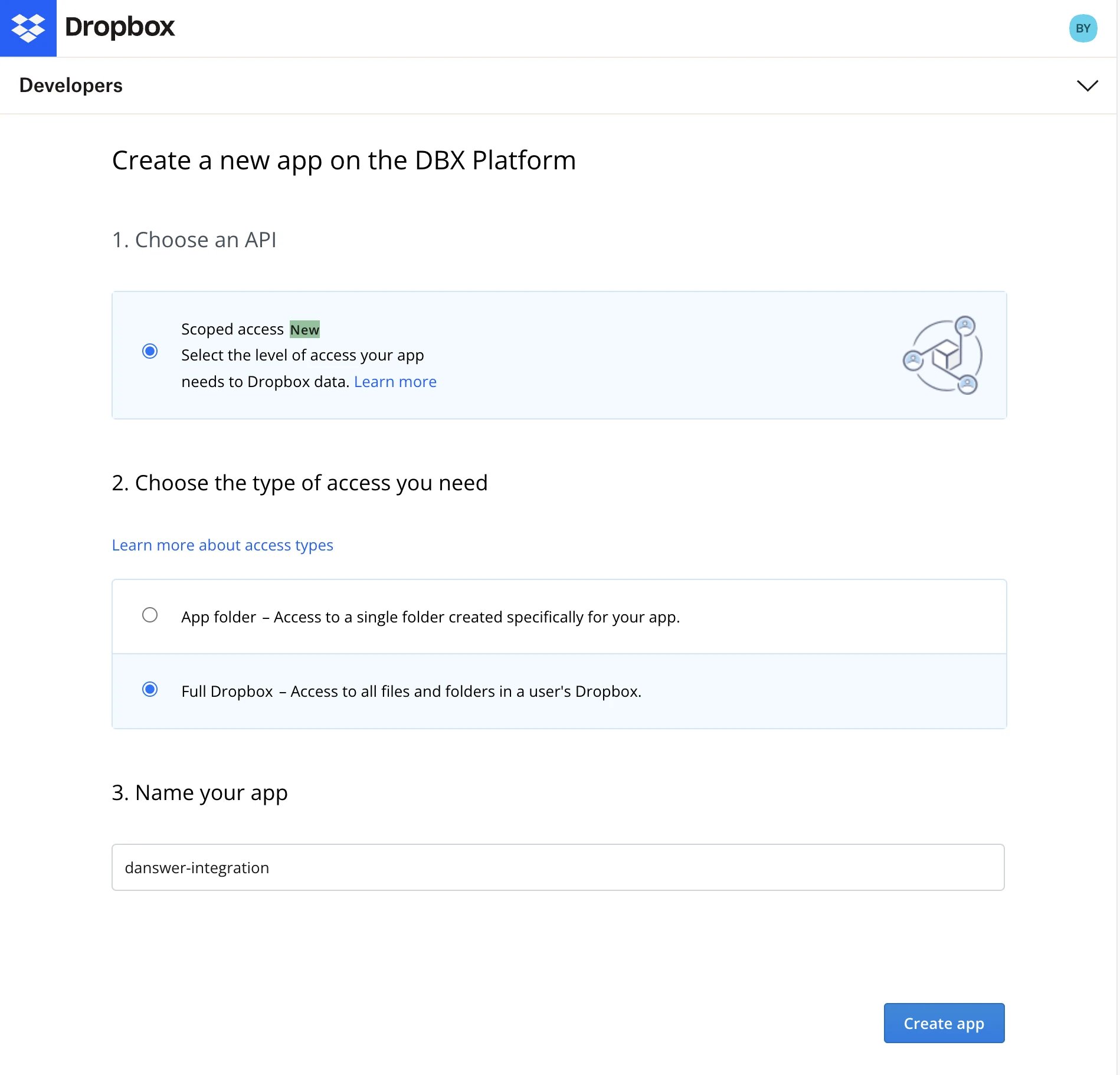
Onyx Connector and click Create app.2
Grant the required scopes
On the Permissions tab, check 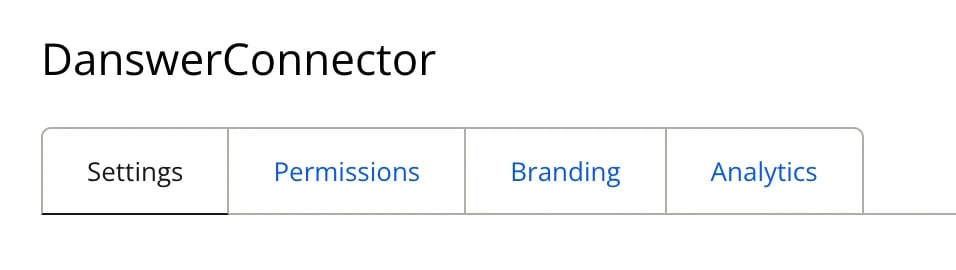
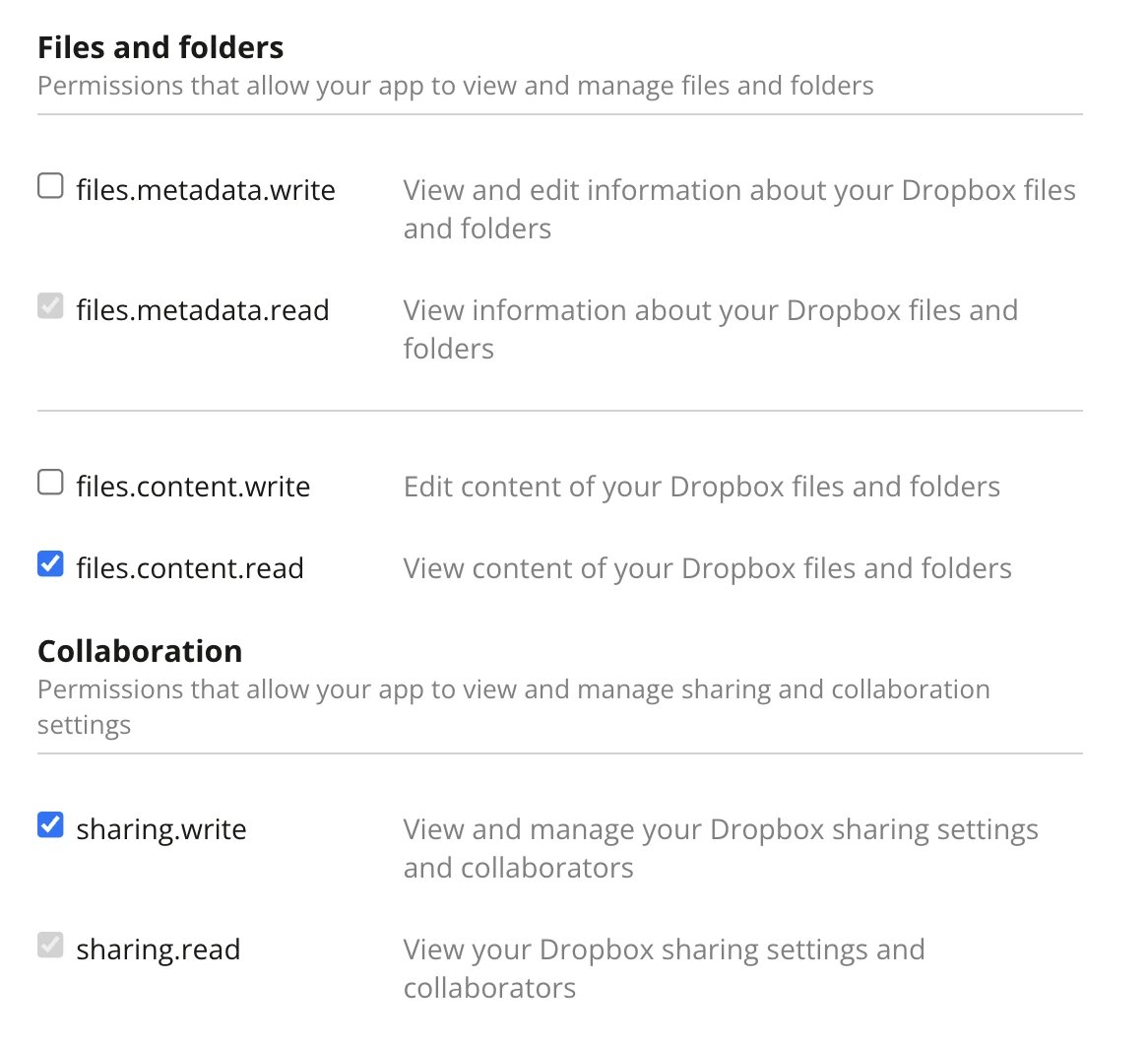

files.content.read and sharing.write.
Onyx needs them to read files and to create document links. Click Submit.3
Generate an access token
Open the Settings tab and scroll down to the OAuth 2 section.
If the Access token expiration setting is available, set it to No expiration.
Click Generate and copy the access token. Refresh the page if you need to generate it again.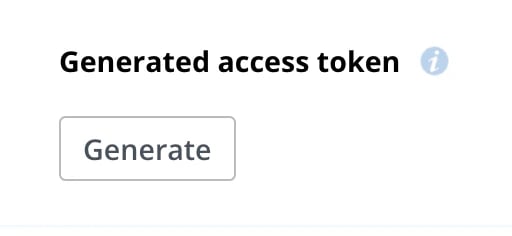
Indexing
1
Create the account
In the Onyx admin panel, go to Connectors and select Dropbox. Under Authentication Account,
click Create New and enter the access token as the API Token.
2
Choose document access
Under Document Access, select who can see the indexed files.
Specific Groups is available on the Business and Enterprise plans and on Onyx Cloud.
Then click Create Connector.