

How it works
The HubSpot connector indexes records from your HubSpot CRM. You choose which object types to index: Tickets, Companies, Deals, and Contacts. Each record becomes one document. The document carries the record’s properties, the notes attached to the record, and a summary of each company, contact, deal, and ticket linked to it. Onyx checks HubSpot for new and changed records on the connector’s refresh schedule. The default is every 30 minutes. Sync with HubSpot mirrors who can view each record in HubSpot. See Sync with HubSpot.Setting up
Authorization
The connector signs in with the access token of a HubSpot private app.1
Create a private app
In HubSpot, go to Settings > Integrations > Private Apps and create a private app.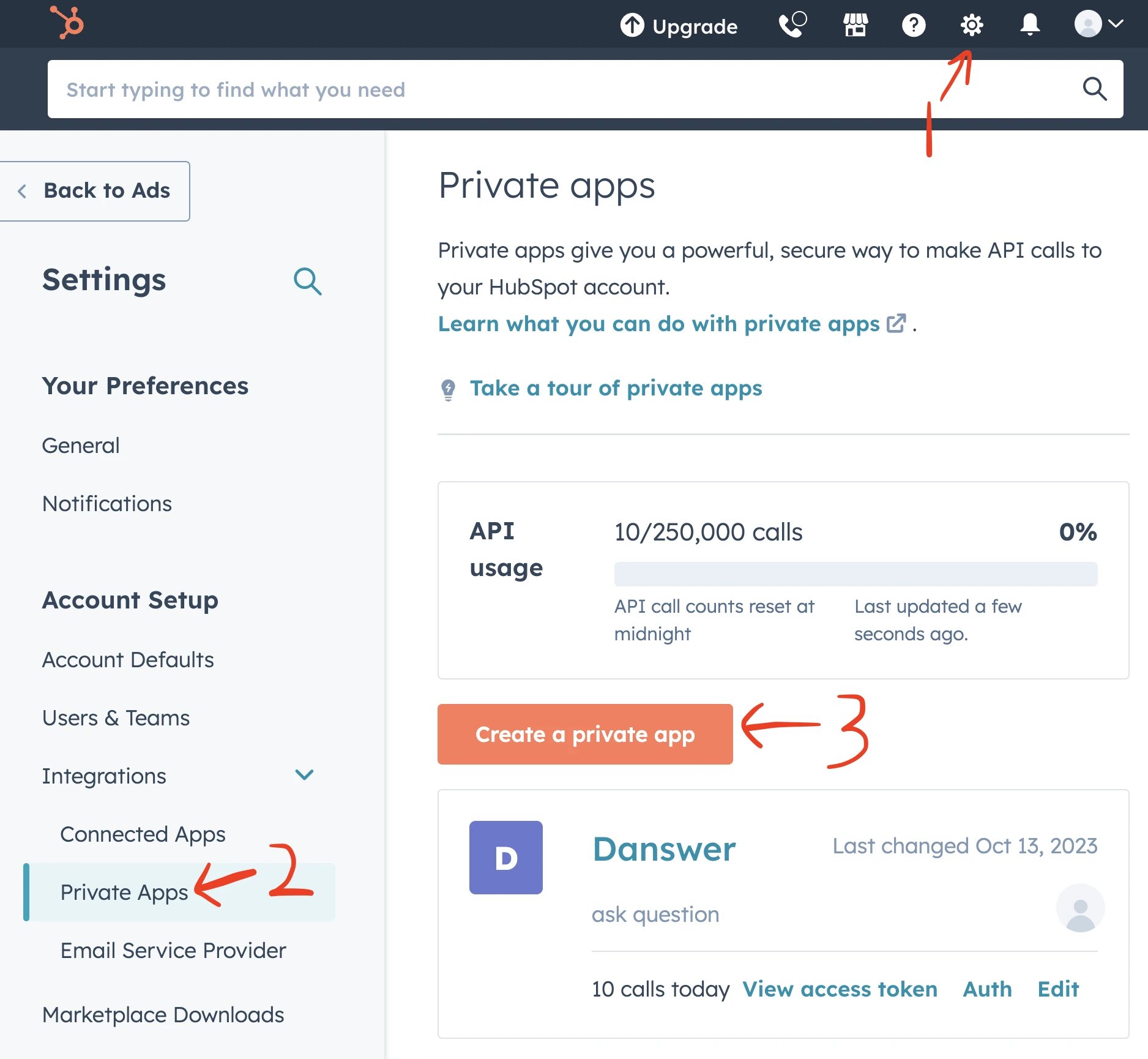
2
Select scopes
Under Scopes, grant the read scope of every object type you want to index.
Grant 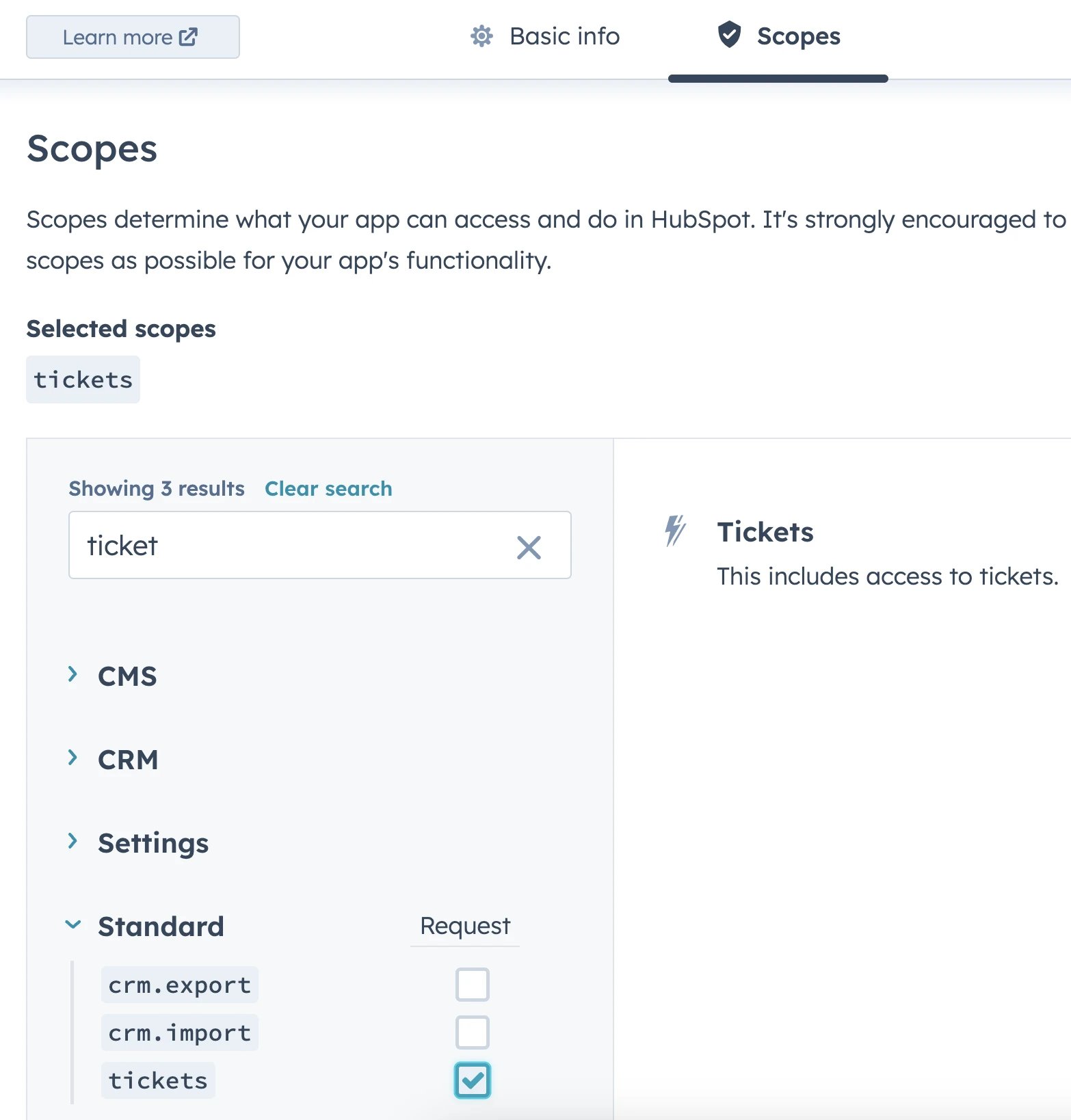
settings.users.read as well if you use Sync with HubSpot.Grant the read scope of a type even if you do not index it when records of the indexed types link to it. Without it,
Onyx skips those links.
3
Copy the access token
Copy the access token that HubSpot shows when you create the app.
Indexing
1
Enter the access token
Go to Admin Panel → Connectors and select HubSpot. Select New HubSpot Account,
paste the access token into API Token and select Create.
2
Choose object types
Select the object types to index. Leave every type selected to index the whole CRM.
3
Choose document access
Under Document Access, select Everyone in Your Organization, Specific Groups, or Sync with HubSpot.
Sync with HubSpot mirrors HubSpot access and is the default where available.Specific Groups and Sync with HubSpot need the Business or Enterprise tier on Onyx Cloud,
or the Enterprise Edition when self-hosted.
4
Create the connector
Select Create Connector. Onyx runs the connector checks below before it creates the connector.
Connector checks
Onyx probes the private app before it creates the connector. A required check that fails blocks creation. The message names the missing scope.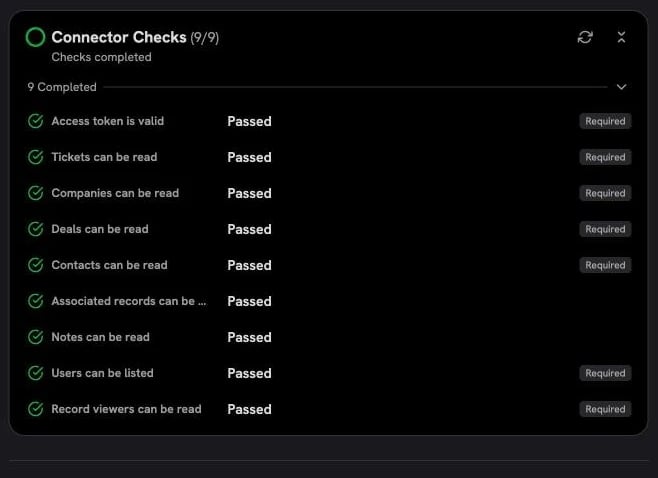
An empty portal passes every check, since there is no record to probe.
Sync with HubSpot
With Sync with HubSpot, Onyx asks HubSpot which users may view each record and grants access to those users. A HubSpot user’s email address must match the user’s email in Onyx.- Deactivated HubSpot users and the private app itself are not granted access.
- A record that HubSpot reports no viewers for is granted to no one.
- Records become visible after the first permission sync completes, not when indexing finishes.
- HubSpot has no groups to sync. Onyx grants access to users only.
HUBSPOT_PERMISSION_DOC_SYNC_FREQUENCY in seconds to change the interval.