

How it works
The Oracle Storage connector indexes the files in one Oracle Cloud Infrastructure (OCI) Object Storage bucket, or in one prefix of that bucket. It reads common document formats such as PDF, DOCX, PPTX, XLSX, TXT, Markdown, and HTML. Onyx skips files in formats it cannot read and files larger than 20 MB. Onyx checks the bucket for new and changed files on the connector’s Refresh Every schedule. The default for this connector is 1 day.Setting up
Authorization
1
Open User Settings
In the Oracle Cloud Console, select the user icon in the top-right corner and select User Settings.
2
Generate a secret key
Under Resources, select Customer Secret Keys, then Generate Secret Key.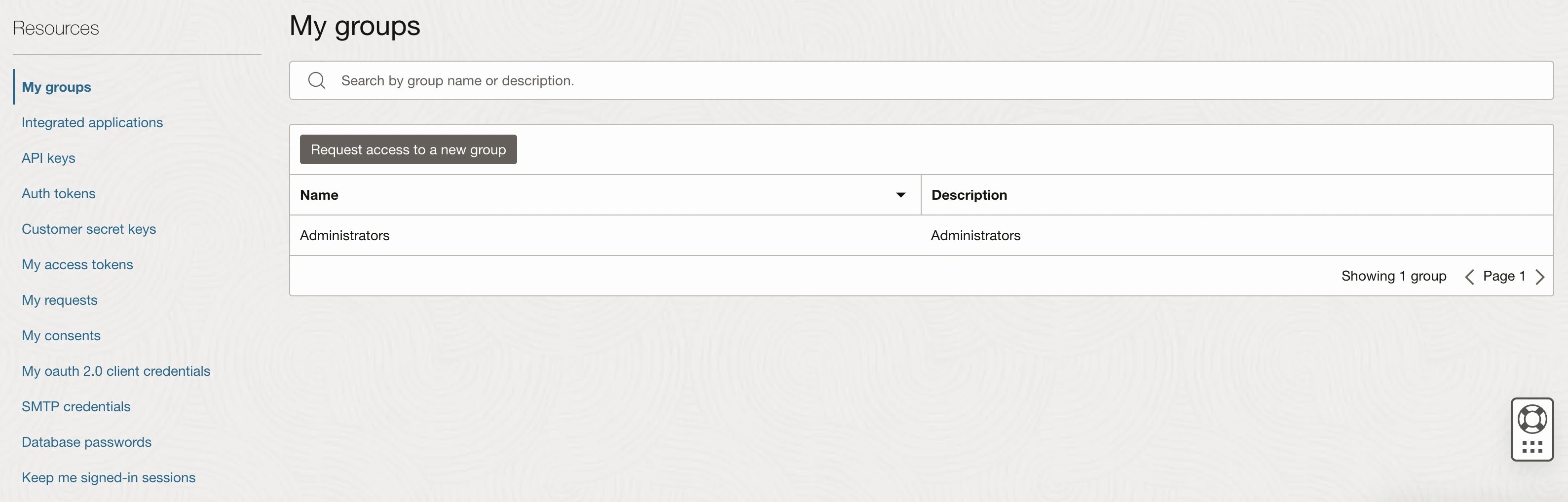
OnyxOCIConnector, and select Generate Secret Key again.
Copy the secret key at once. You cannot view it again later.3
Copy the access key
The Customer Secret Keys page now lists the new key. Hover over the key to view and copy its access key.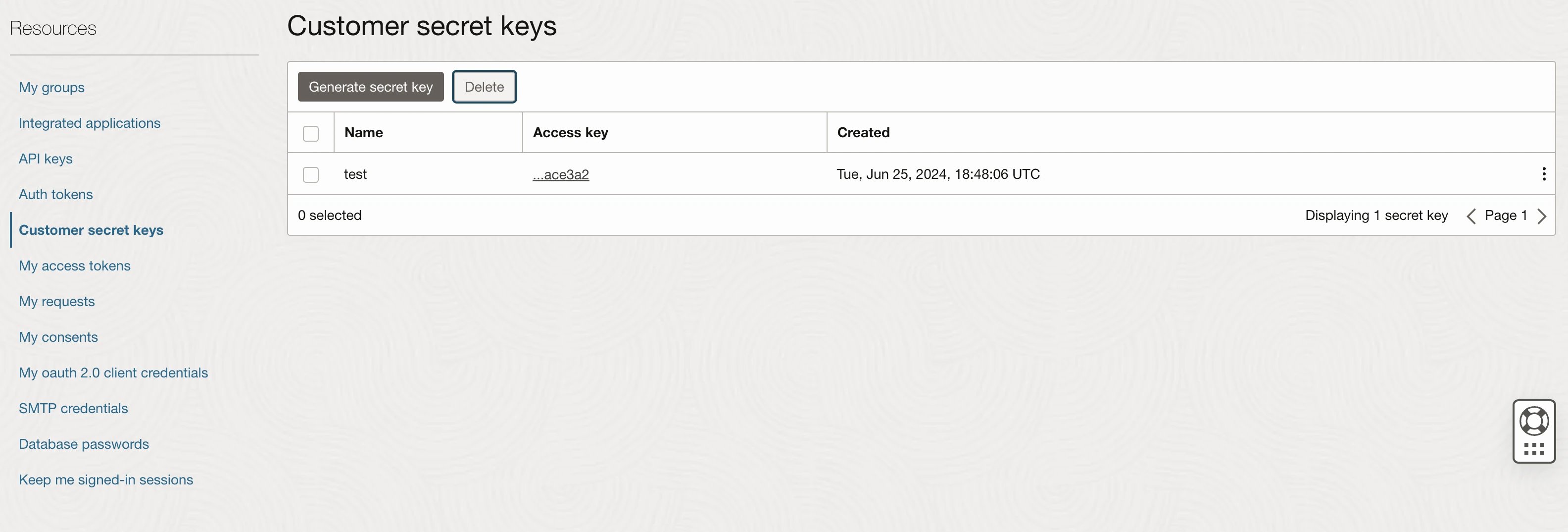
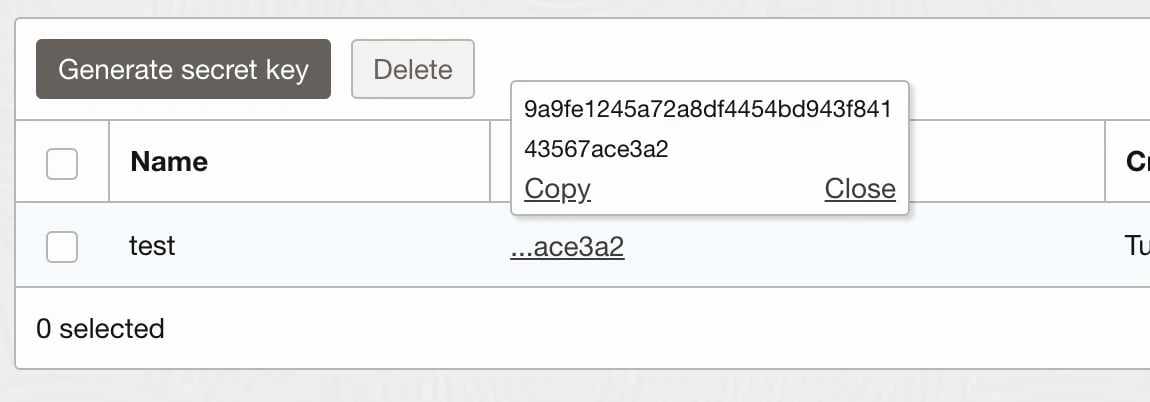
4
Find the Object Storage namespace and region
Select the user icon in the top-right corner and select Tenancy: [your tenancy name].
The tenancy details show the Object Storage namespace. Note the region of the bucket as well,
such as
us-ashburn-1.Indexing
1
Create an authentication account
In Onyx, go to Admin Panel → Connectors and select Oracle Storage. Under Authentication Account,
select Create New. Enter a Display Name and fill in: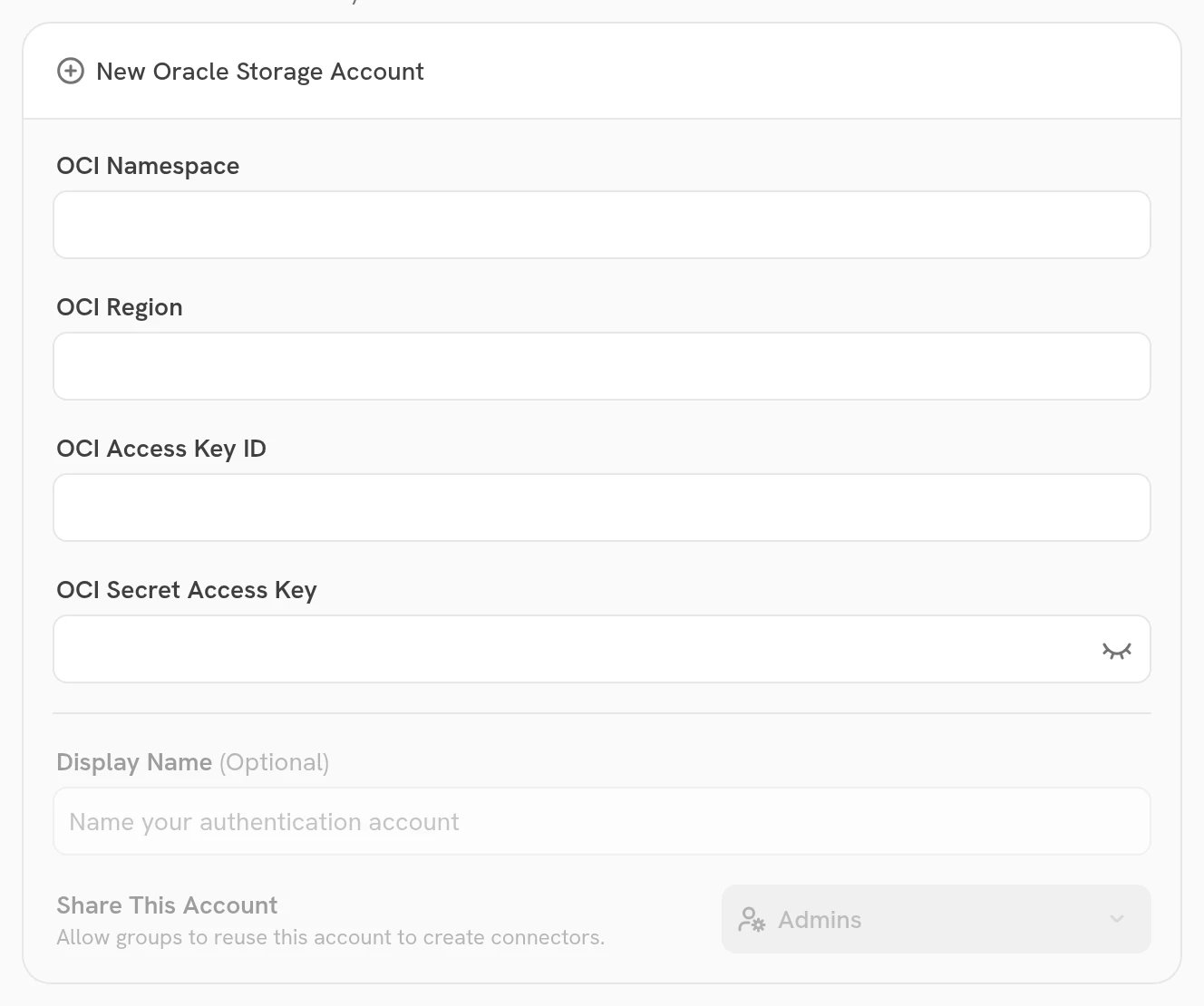
- OCI Namespace: the Object Storage namespace of your tenancy
- OCI Region: the region of the bucket
- OCI Access Key ID: the access key you copied
- OCI Secret Access Key: the secret key you copied
2
Choose the bucket
Under Connector Settings, give the connector a Display Name. In Bucket Name, enter the bucket to index.
In Prefix, enter a folder path to index only part of the bucket, or leave it empty to index the whole bucket.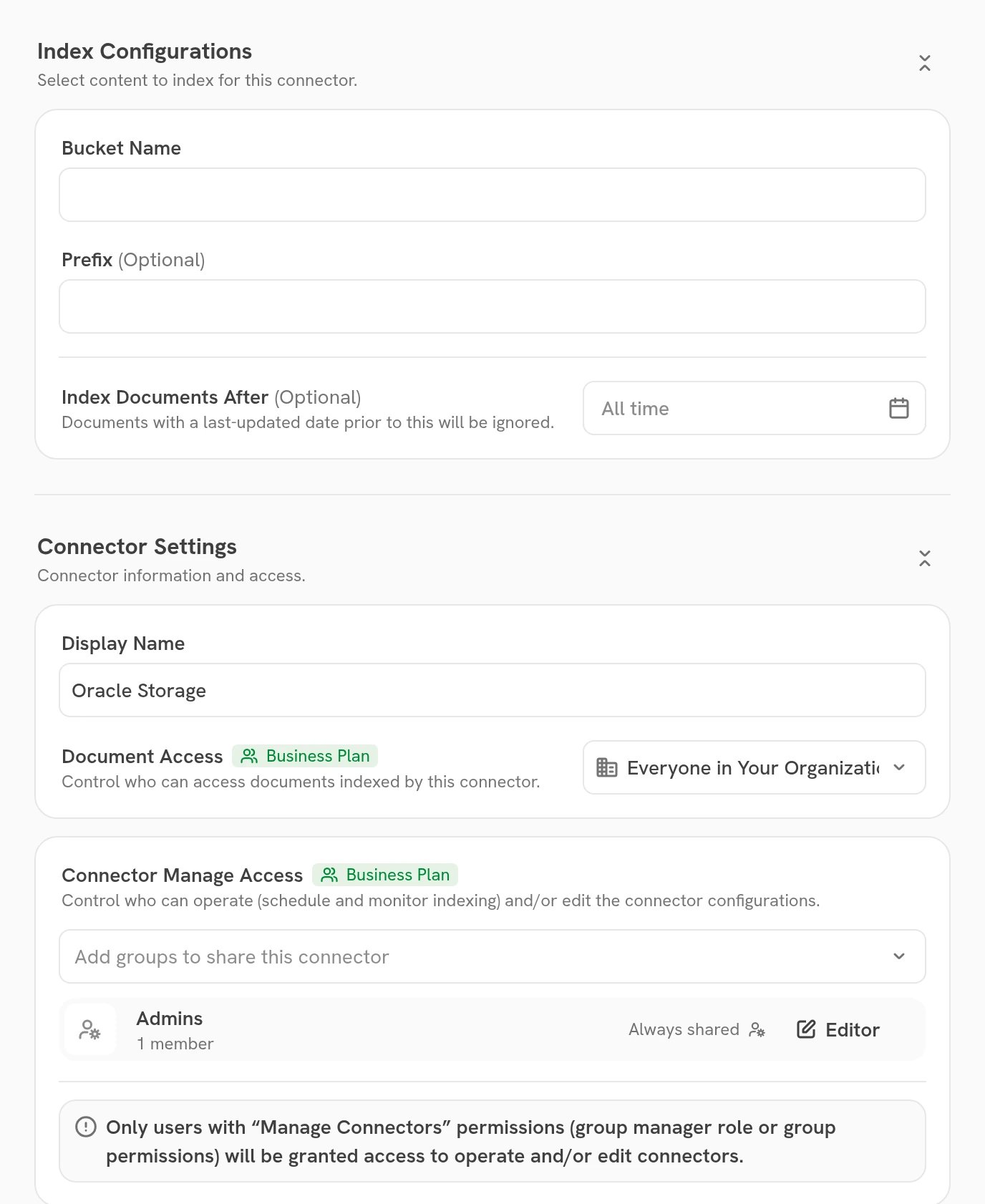
3
Start indexing
Select Create Connector to save the connector and start indexing.
Open Admin Panel → Indexing Status and select the connector to follow the first indexing run.