

Choose your deployment
- Follow Confluence Cloud setup for an Atlassian-hosted site.
- Follow Confluence Data Center and Server setup for a self-managed site.
Configure the connector in Onyx
First, complete the authentication steps in the guide for your deployment. Then open Admin Panel → Connectors and select Confluence.1
Set the deployment and URL
Under Index Configurations, choose Confluence Cloud or Confluence Data Center.
The deployment decides which account form Onyx shows in the next step.
-
Site URL: For Cloud, include
/wiki. For Data Center or Server, enter the site root or configured context path. Do not add/rest/api. -
Scoped API Token: Enable this only for a Confluence Cloud API token that you created with scopes.
Leave it off for a classic Cloud token and for Data Center or Server.
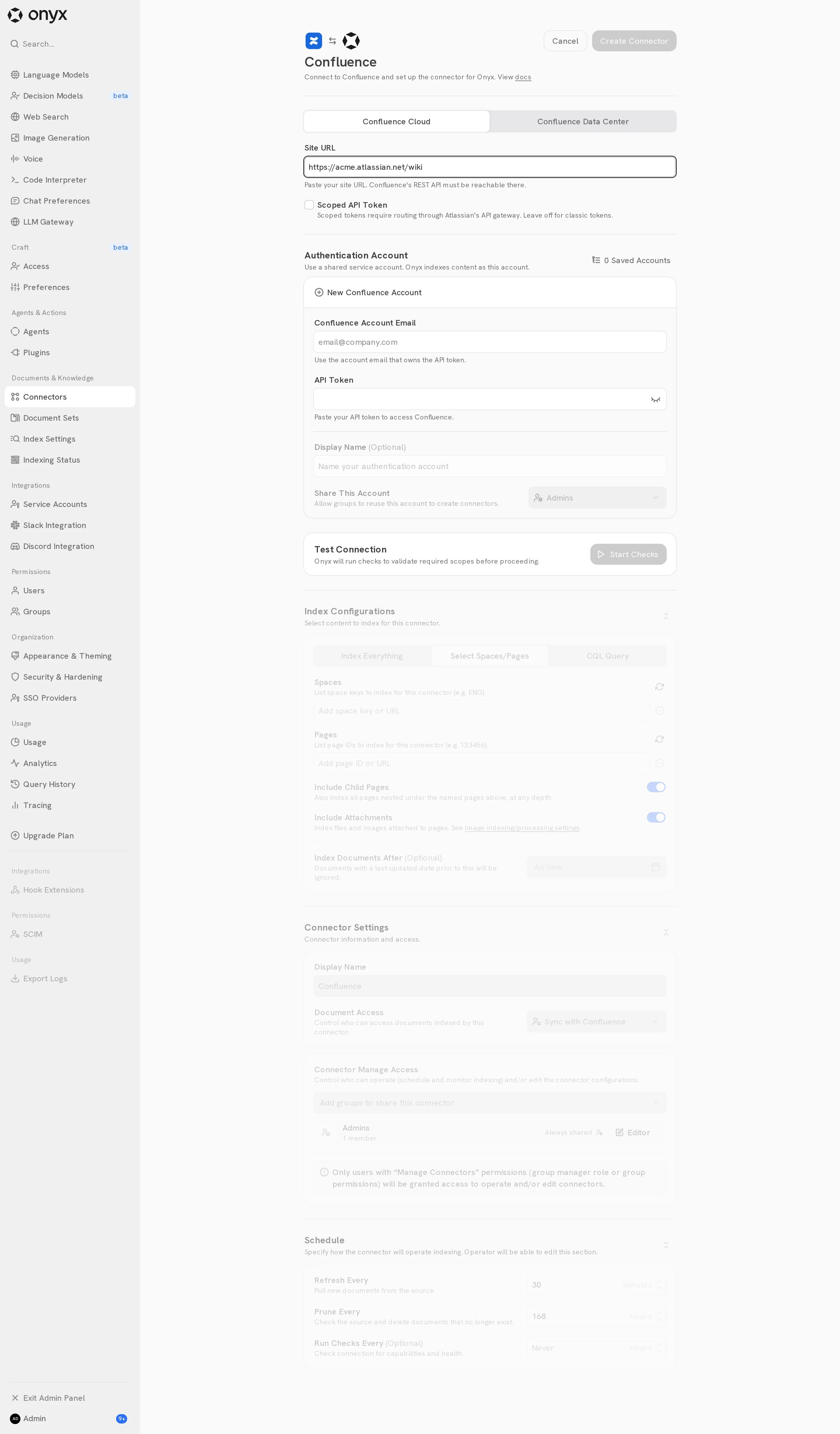
2
Connect a Confluence account
Under Authentication Account, select New Confluence Account and enter the token from your deployment guide.
- Cloud: enter the Confluence Account Email and its API Token.
- Data Center or Server: enter the Personal Access Token. Onyx sends it as a bearer token.
-
Onyx Cloud: you can select Authorize with Confluence instead and sign in with Atlassian.
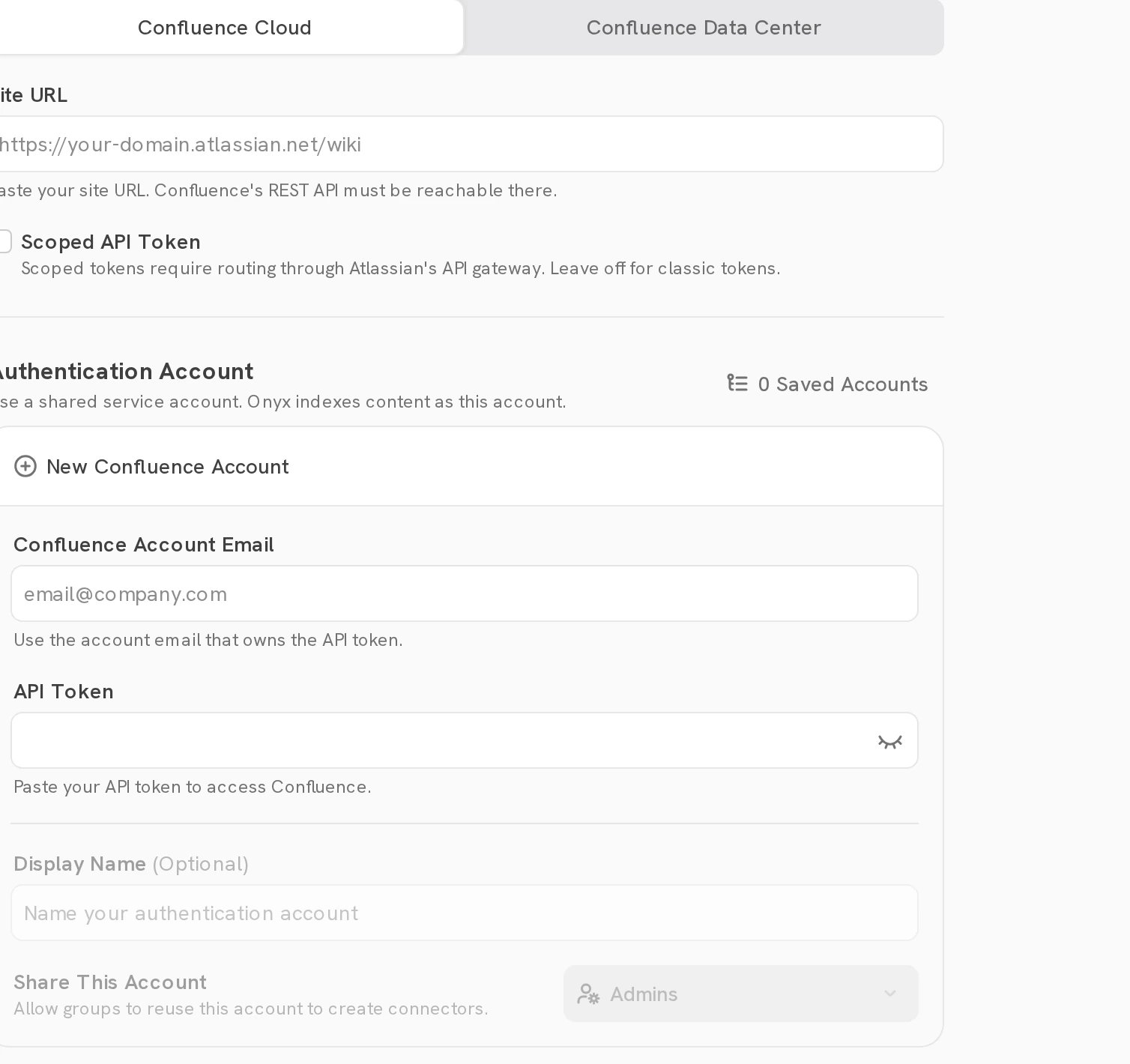
3
Choose what to index
Choose one tab:
A CQL query must use
type=page as its only content-type filter. Do not add order by, lastModified,
or other date filters. Onyx adds its own time filters during incremental sync, and yours can break them.
Onyx still retrieves comments and enabled attachments for the returned pages.
See Atlassian’s CQL
documentation.4
Choose attachment processing
Keep Include Attachments enabled to index files and images attached to the indexed pages.
Image attachments also need image processing enabled under Admin Panel → Index Settings.
Disable attachment processing when you want only page text and comments.An attachment larger than 10 MB, or whose extracted text is longer than 200,000 characters, is skipped.
Set
CONFLUENCE_CONNECTOR_ATTACHMENT_SIZE_THRESHOLD and CONFLUENCE_CONNECTOR_ATTACHMENT_CHAR_COUNT_THRESHOLD to
change these limits.5
Choose who can see the pages
Under Document Access, choose Everyone in Your Organization, Specific Groups,
or Sync with Confluence. Sync with Confluence mirrors Confluence space permissions, page restrictions,
and inherited ancestor restrictions.Specific Groups and Sync with Confluence are available on Onyx Cloud and Enterprise Edition.
6
Create and verify
Create Connector is enabled once the required connection checks pass. Select it,
then open Admin Panel → Indexing Status, select the connector,
and wait for the first indexing attempt to complete. Then search for a known page in Onyx.
Connection checks
Each check reads from Confluence with the selected account, so a failure points at that account’s access.
The permission checks run again before each scheduled permission sync,
so an account that loses access stops the sync instead of hiding pages.
You can set Run Checks Every under Schedule to repeat the checks on a timer.
Permission sync behavior
Onyx applies the closest read restriction in this order:- A page restriction.
- The closest restricted ancestor page.
- The page’s space permissions.
CONFLUENCE_PERMISSION_DOC_SYNC_FREQUENCY and CONFLUENCE_PERMISSION_GROUP_SYNC_FREQUENCY (seconds)
to change them.
Skip pages by label
SetCONFLUENCE_CONNECTOR_LABELS_TO_SKIP to a comma-separated list of Confluence labels.
Onyx does not index a page that carries one of these labels.