

Authorization
1
Create a Google Cloud project
Go to https://console.cloud.google.com/projectcreate
and create a project.
2
Enable the Google Drive API
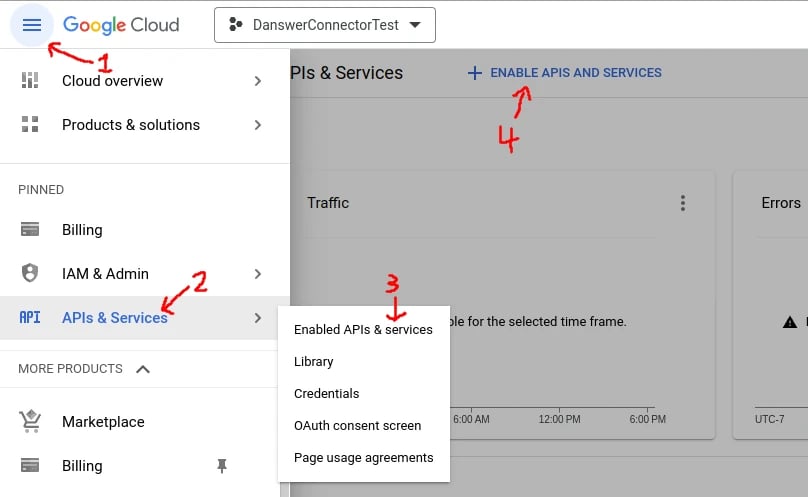
- In the left panel, open APIs & services and go to Enabled APIs and services.
- Click + ENABLE APIS AND SERVICES.
- Search for Google Drive API and click ENABLE.
3
Enable the Admin SDK API
- Click + ENABLE APIS AND SERVICES again.
- Search for Admin SDK API and click ENABLE.
4
Enable the Google Sheets API
- Click + ENABLE APIS AND SERVICES again.
- Search for Google Sheets API and click ENABLE.
5
Enable the Google Docs API
- Click + ENABLE APIS AND SERVICES again.
- Search for Google Docs API and click ENABLE.
6
Set up the OAuth consent screen
- Under APIs & services, select OAuth consent screen.
- If you do not have a Google organization, select External as the User Type.
- Name the app and enter the required contact emails.
7
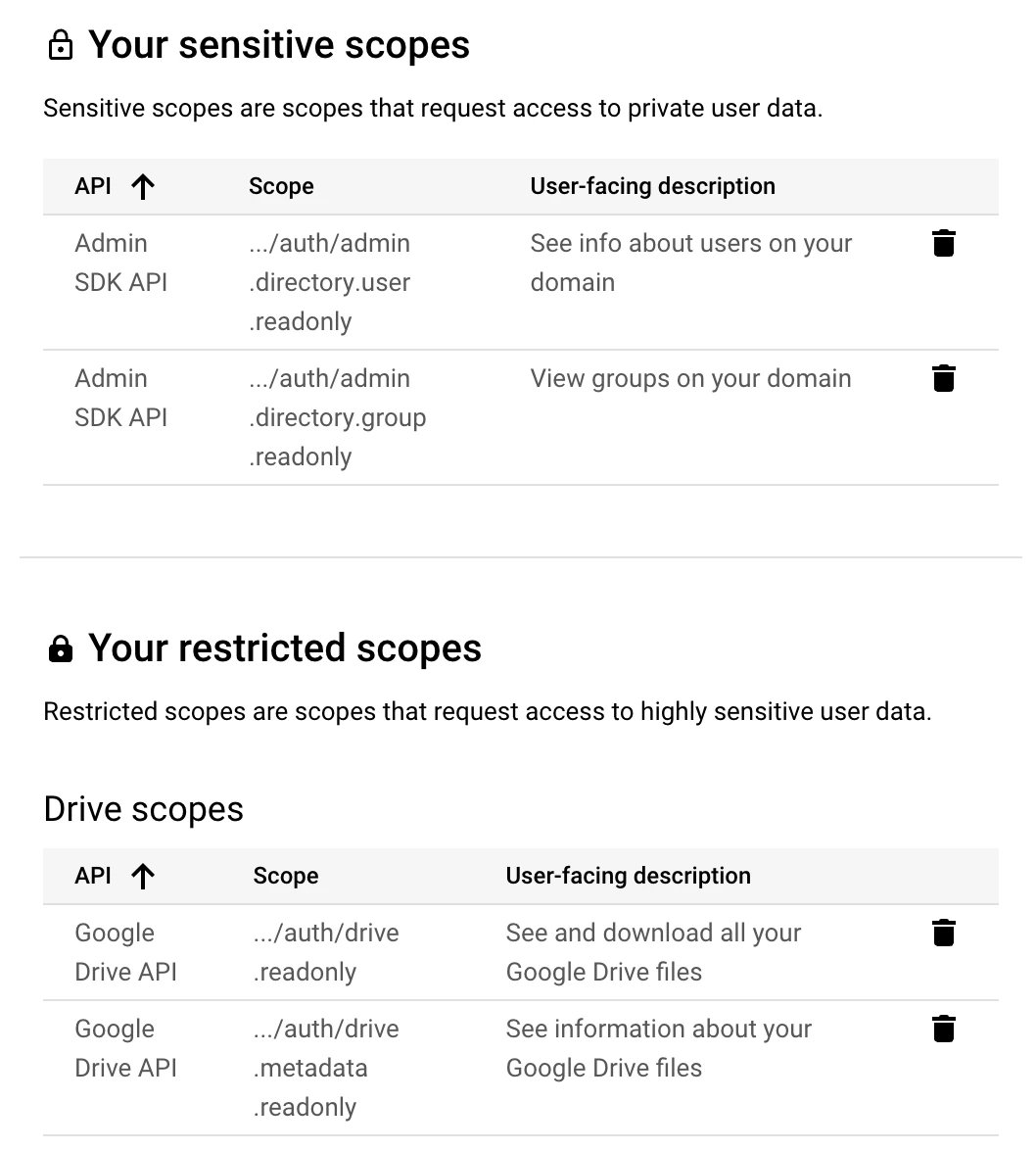
Add the scopes
- Add the scope
.../auth/drive.readonlyfor the Google Drive API. - Add the scope
.../auth/drive.metadata.readonlyfor the Google Drive API. - Add the scope
.../auth/admin.directory.user.readonlyfor the Admin SDK API. - Add the scope
.../auth/admin.directory.group.readonlyfor the Admin SDK API.
8
Add test users
This step applies only to apps without a Google organization.
- Add at least one test user email. Only these accounts can run the OAuth flow.
9
Create the OAuth client
Go to the Credentials tab and select + CREATE CREDENTIALS > OAuth client ID.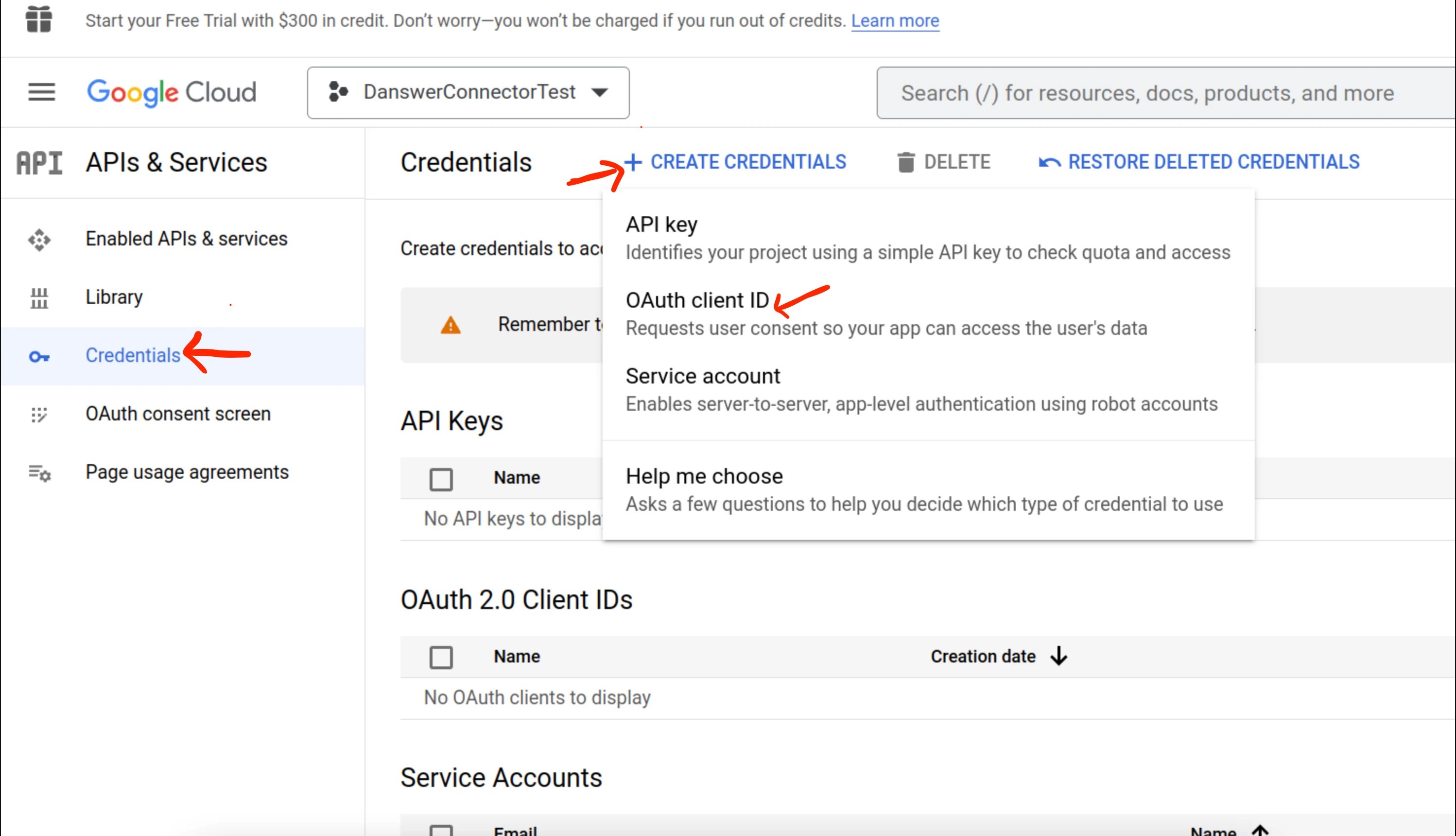
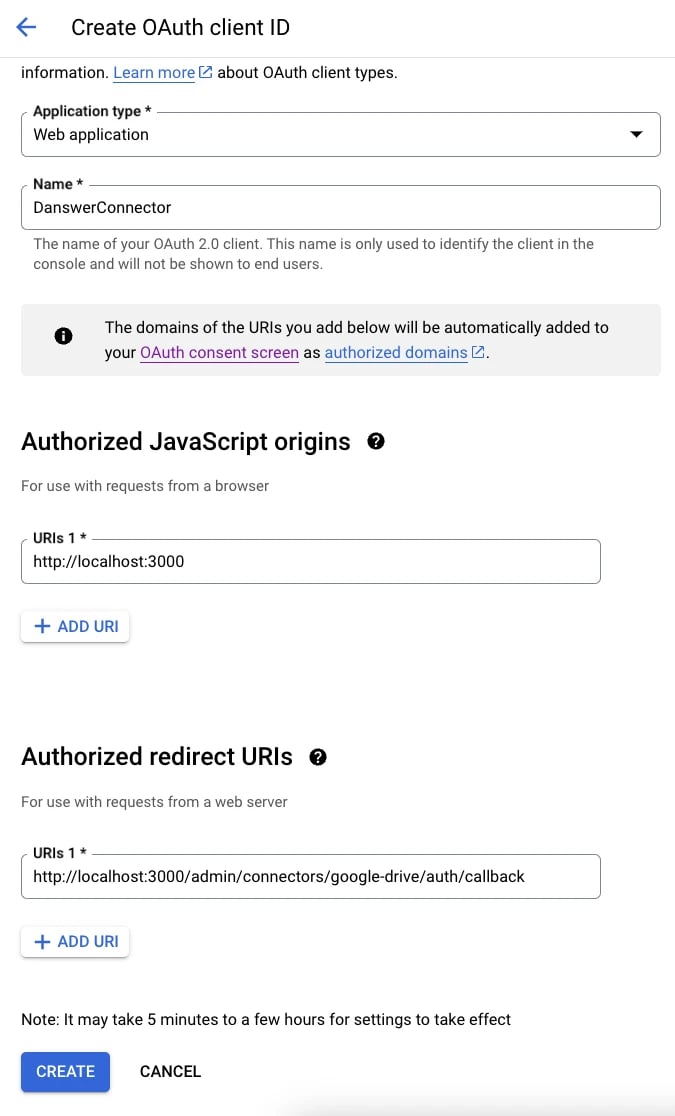
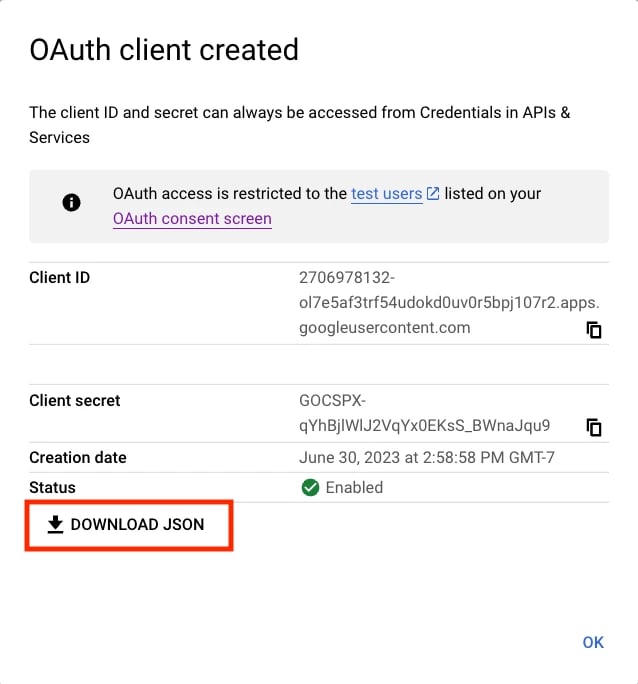
- Choose Web application and name it, for example
OnyxConnector. - Add an Authorized JavaScript origin:
http://localhost:3000for a local deploymenthttps://<YOUR_ONYX_URL>for a self-hosted deploymenthttps://cloud.onyx.appfor Onyx Cloud- Add an Authorized redirect URI:
http://localhost:3000/admin/connectors/google-drive/auth/callbackfor a local deploymenthttps://<YOUR_ONYX_URL>/admin/connectors/google-drive/auth/callbackfor a self-hosted deploymenthttps://cloud.onyx.app/admin/connectors/google-drive/auth/callbackfor Onyx Cloud
Indexing
1
Create the account
In the Onyx admin panel, go to Connectors and select Google Drive. Under Authentication Account,
click Create New and select OAuth. Upload or paste the OAuth app JSON you downloaded above.
Click Authenticate with Google Drive and sign in with the Google account whose Drive you want to index.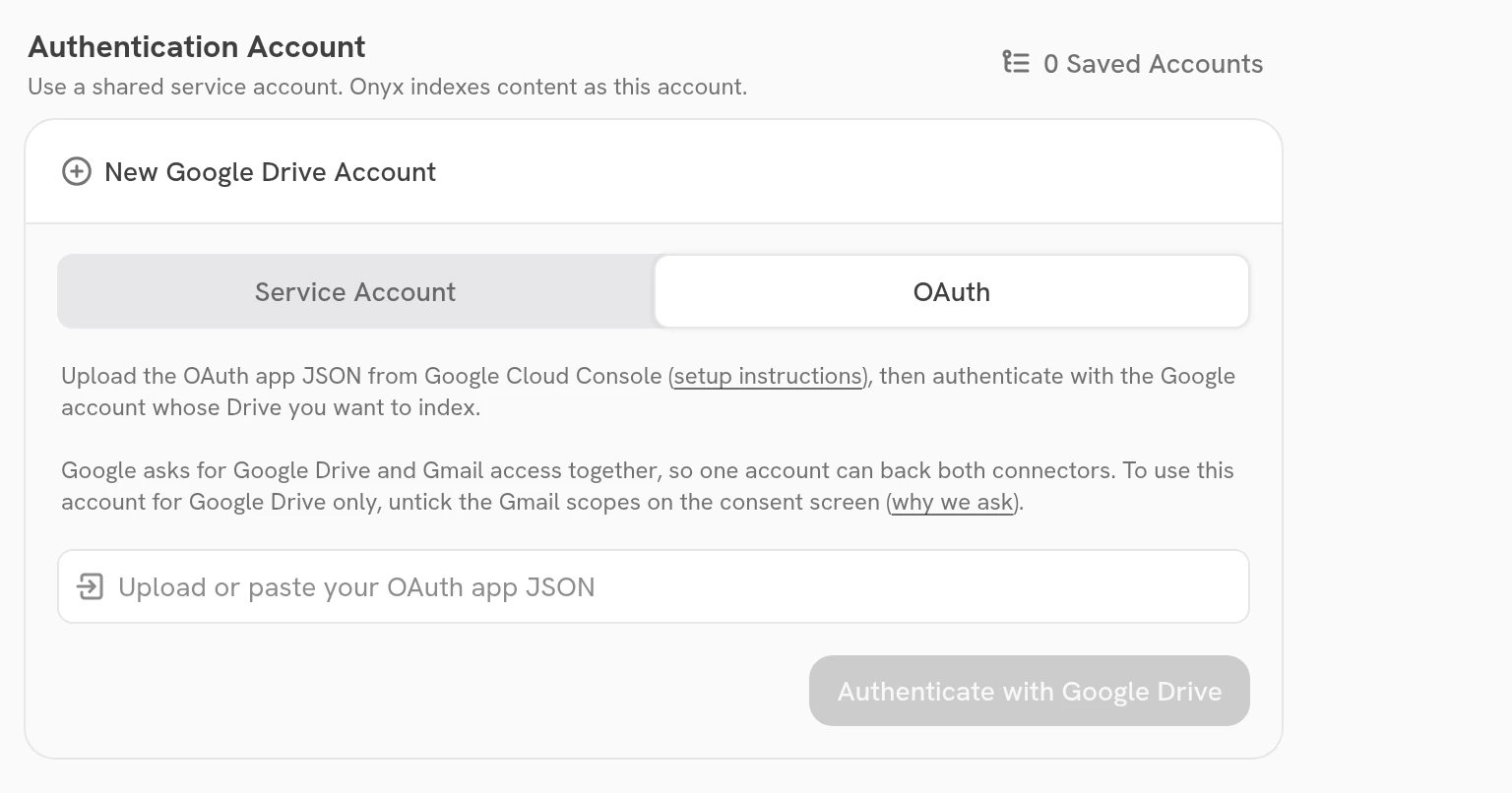
2
Choose what to index
Under General, select Include Shared Drives, Include My Drive, or Include All Files Shared with You.
Or open Specific and enter Shared Drive URLs and Folder URLs.
See the Google Drive overview for the details of each option.
3
Choose document access
Under Document Access, select who can see the indexed files.
Sync with Google Drive mirrors each user’s own access in Google Drive.
Specific Groups and Sync with Google Drive are available on the Business and Enterprise plans and on Onyx
Cloud. Then click Create Connector.
The app JSON is stored on the account it creates, so each OAuth account carries its own app.
To add more connectors for the same Google account,
select the existing account under Authentication Account instead of creating a new one.
An instance can hold multiple Google Drive accounts,
including ones that use different OAuth apps or different Google Workspaces.
To use Sync with Google Drive,
sign in with an account that has an admin role in the Google Workspace with these privileges:
- Admin console privileges > Services > Drive and Docs > Settings
- Admin API privileges > Users > Read
- Admin API privileges > Groups > Read
- Admin API privileges > Organization Units > Read
Using one account for Gmail and Google Drive
A Google account created in Onyx is listed on both the Gmail and the Google Drive connector forms, so one account can index both. For this reason, the Google consent screen asks for the scopes of both connectors:- To use the account for both connectors, grant every scope on the consent screen. Add the scopes of both connectors to your app’s OAuth consent screen, and add the redirect URI of each connector form you authenticate from.
- To use the account for Google Drive only, untick the Gmail scopes on the consent screen. The account then works only for Google Drive. The connector checks report the missing scopes if you select it for Gmail.