

Authorization
1
Create Google Cloud Project
2
Enable required APIs
Under APIs & services → Enabled APIs and services,
select +ENABLE APIS AND SERVICES and enable the Google Drive API, the Admin SDK API,
the Google Docs API, and the Google Sheets API.
This link
enables the Google Drive API directly.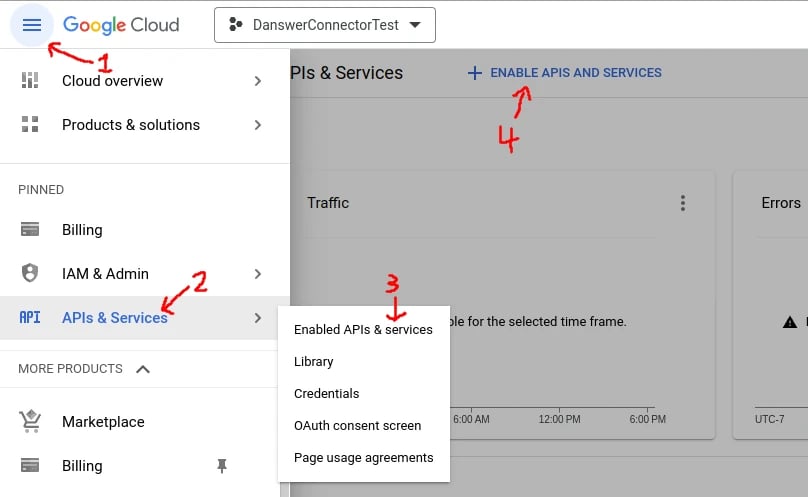
3
Create Service Account
- Go to the Service Account management page in Google Cloud.
- Click
Create Service Accountbutton and fill out the fields in step 1. You can ignore steps 2 and 3. - Go to the
Keyssection, and clickAdd Key. Download this key.
- To give the service account the proper permissions you will have to navigate to this link
- Then select
Manage, selectOverride parent's policyand then selectNot enforcedunderRules. - Finally, select
SET POLICY
4
Grant domain-wide delegation
Give this Service Account read-only access to Google Drive
- Copy the
Unique IDof the Service Account - Go to the Domain-wide Delegation page in the Google Admin Console.
- Click
Add new, fill in the client ID with theUnique IDof the Service account - Copy this comma separated list of scopes and paste it into field
OAuth scopes:https://www.googleapis.com/auth/drive.readonly,https://www.googleapis.com/auth/drive.metadata.readonly,https://www.googleapis.com/auth/admin.directory.group.readonly,https://www.googleapis.com/auth/admin.directory.user.readonly
Indexing
1
Create the credential
Go to Admin Panel → Connectors and select Google Drive.
Select New Google Drive Account and choose the Service Account method.
Upload or paste the JSON key you downloaded in Service Account Key.For the Primary Admin Email, use the email of a user that: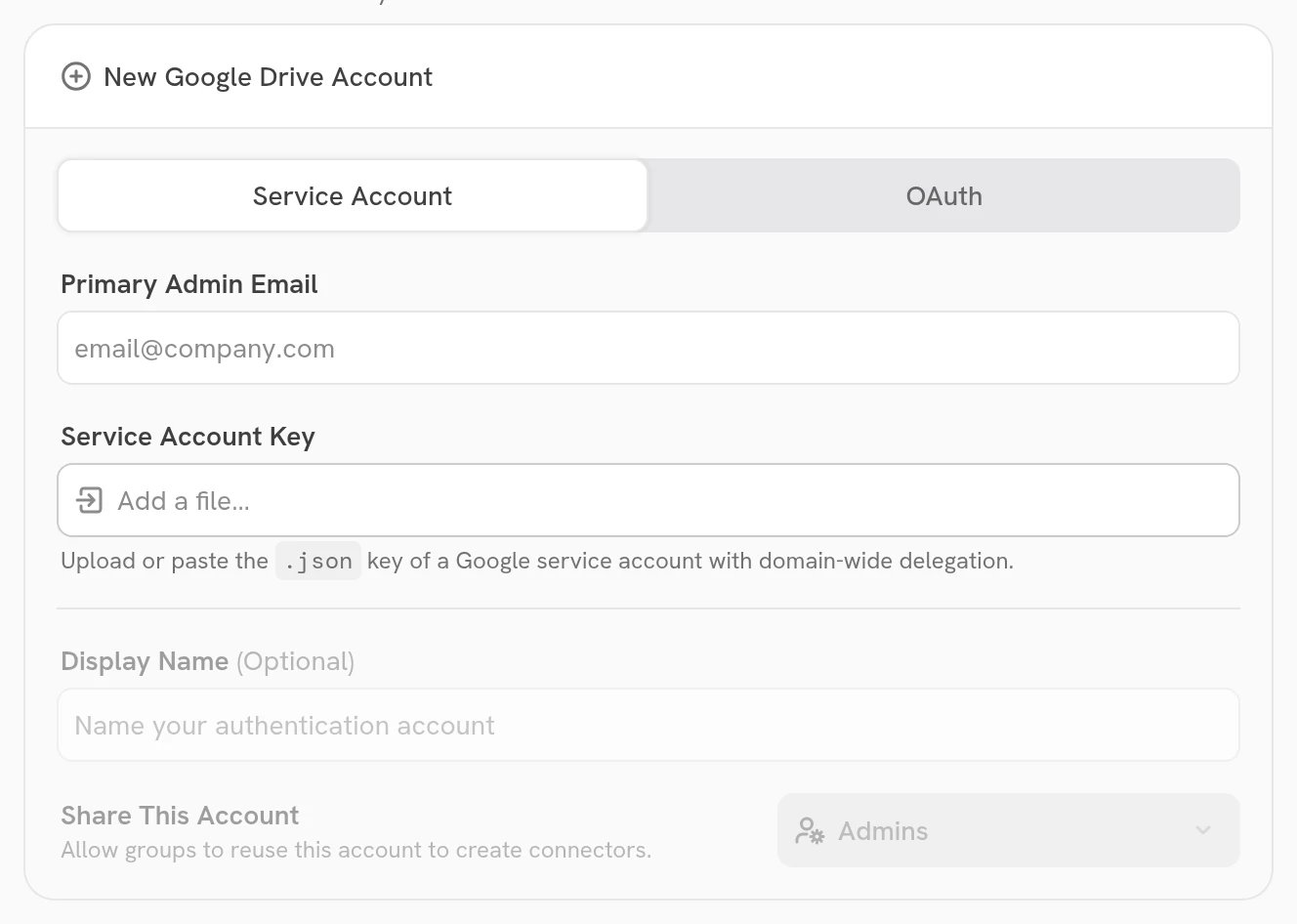
- Has access to
Drive and Docsin Google Workspace - Has the following admin permissions:
- Admin console privileges -> Services -> Drive and Docs -> Settings
- Admin API privileges -> Users -> Read
- Admin API privileges -> Groups -> Read
- Admin API privileges -> Organization Units -> Read
onyx-robot@your-domain.com).
It must NOT be the service account email.
A Google Workspace admin grants these permissions under Account > Admin roles.2
Configure the connector
Choose what to index and who can see it. See the Google Drive overview
for every setting. Select Create Connector when the required checks pass.
You can create more than one Google Drive credential on a single Onyx instance, each with its own service account.
This lets you index multiple Google Workspaces from one Onyx deployment.
A Google credential is listed on both the Gmail and the Google Drive connector forms.
To use one service account for both connectors, delegate the scopes of both:
https://www.googleapis.com/auth/gmail.readonly,https://www.googleapis.com/auth/drive.readonly,https://www.googleapis.com/auth/drive.metadata.readonly,https://www.googleapis.com/auth/admin.directory.group.readonly,https://www.googleapis.com/auth/admin.directory.user.readonly.
With only one connector’s scopes delegated, the credential works for that connector only.